Custom Upload Fields are additional metadata fields that can be configured in your Asset Library. Users uploading or editing assets can add more metadata to assets that might not fall neatly into the included IntelligenceBank metadata fields (ie: keywords, description, etc).
For example, you may want to consider adding custom upload fields if you want to capture additional, more bespoke information on your assets, like additional date fields (ie: Photography Shoot Date) or website links (ie: add an external link associated with the asset).
These custom upload fields are reportable and generally searchable or filterable within the Asset Library as well.
Table of Contents
How to Access Custom Upload Fields
Custom Upload Fields can be configured by:
- Main Admins
- Asset/Resource Admins
To set up your Custom Upload Fields:
| 1 | Navigate to your Asset Library's parent folder view. |
| 2 | Click the three vertical dots in the top right of the page (next to the +Add button) and then Manage Metadata.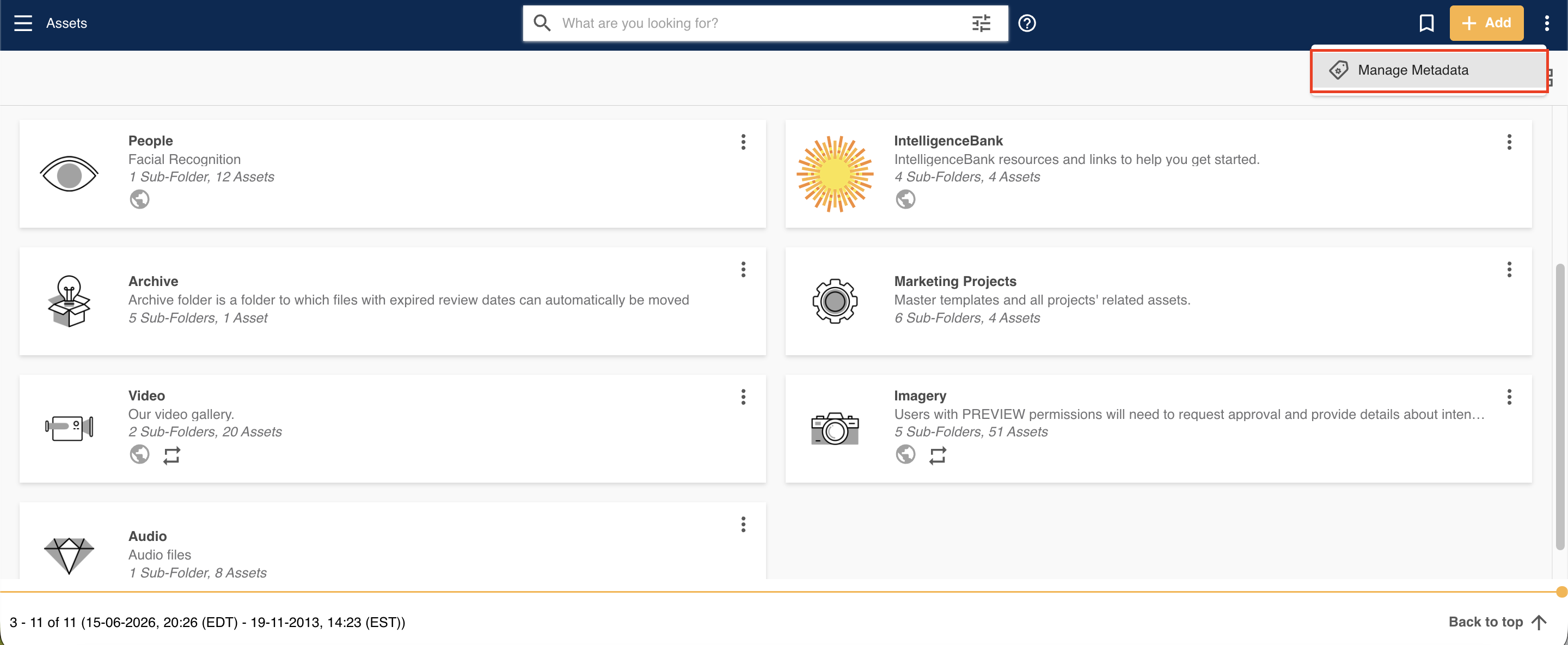 |
| 3 | Next, click the Custom Upload Fields action in the side panel.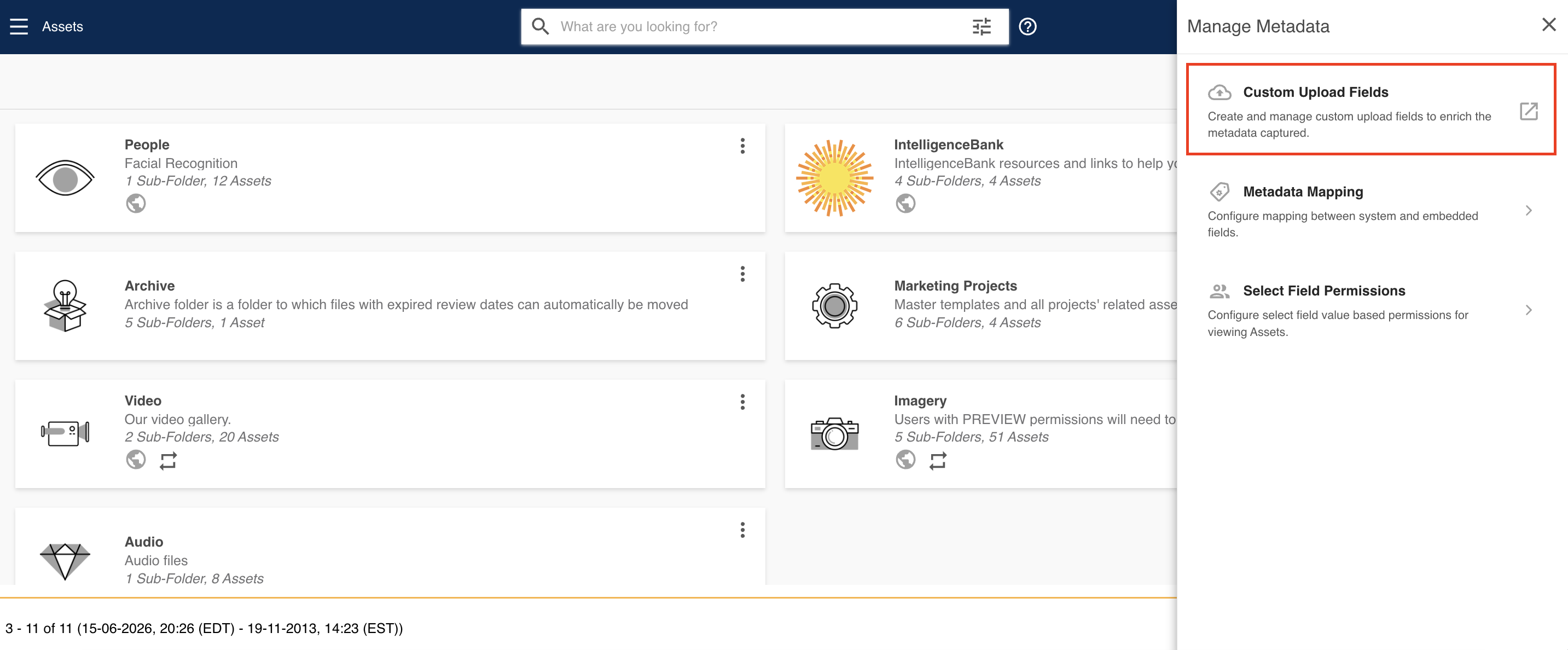 |
How to Create Custom Upload Fields
Once you click the Custom Upload Fields action, you will be taken to the Custom Form Builder.
On the left hand side of the page you can see a list of Elements. These are the options you can choose from when adding your new fields. You can see a full list of the fields supported below.
To add Custom Upload Fields, follow the steps below:
| 1 | Click on the Element you would like to add. For example, if you would like to add a free text field, click on the Text button.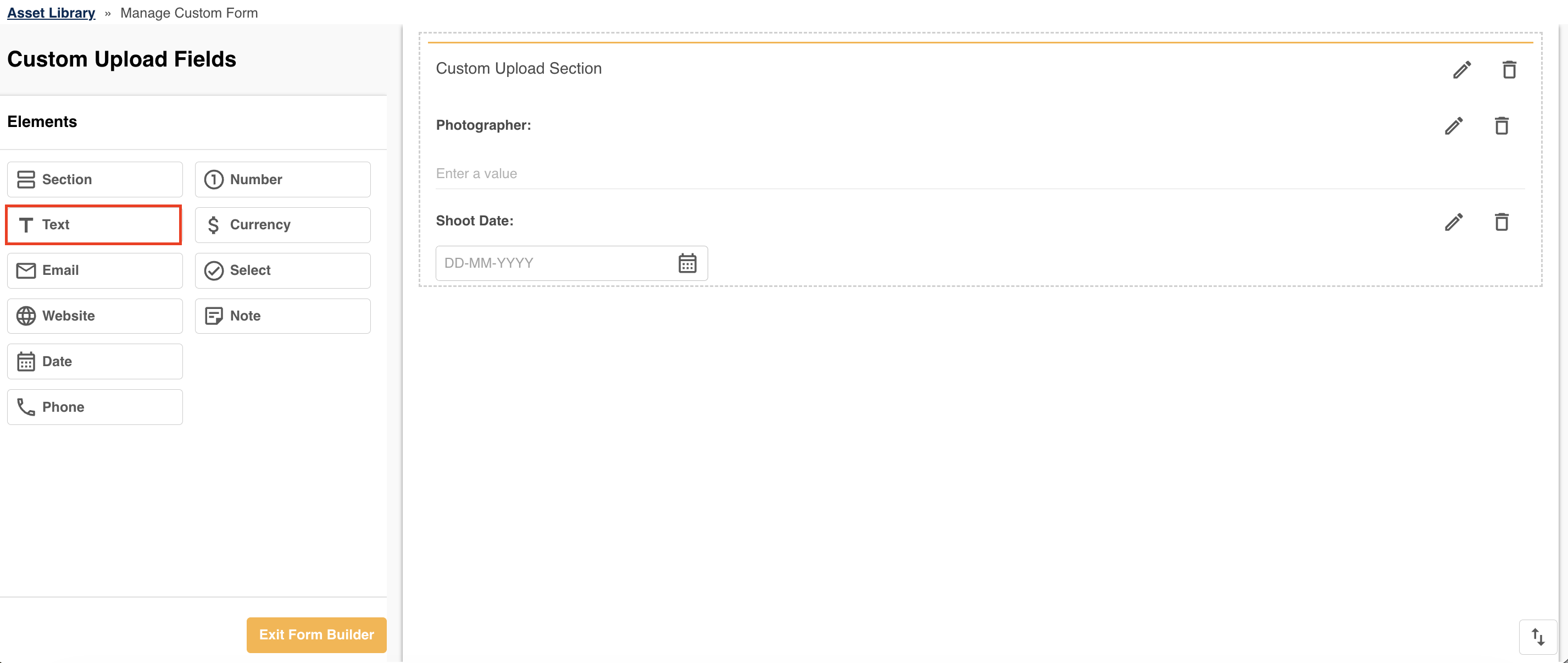 |
| 2 | Add a Field Title and any additional information required, ie Help Copy, Placeholder text, etc. Note that there are different options available for each field type.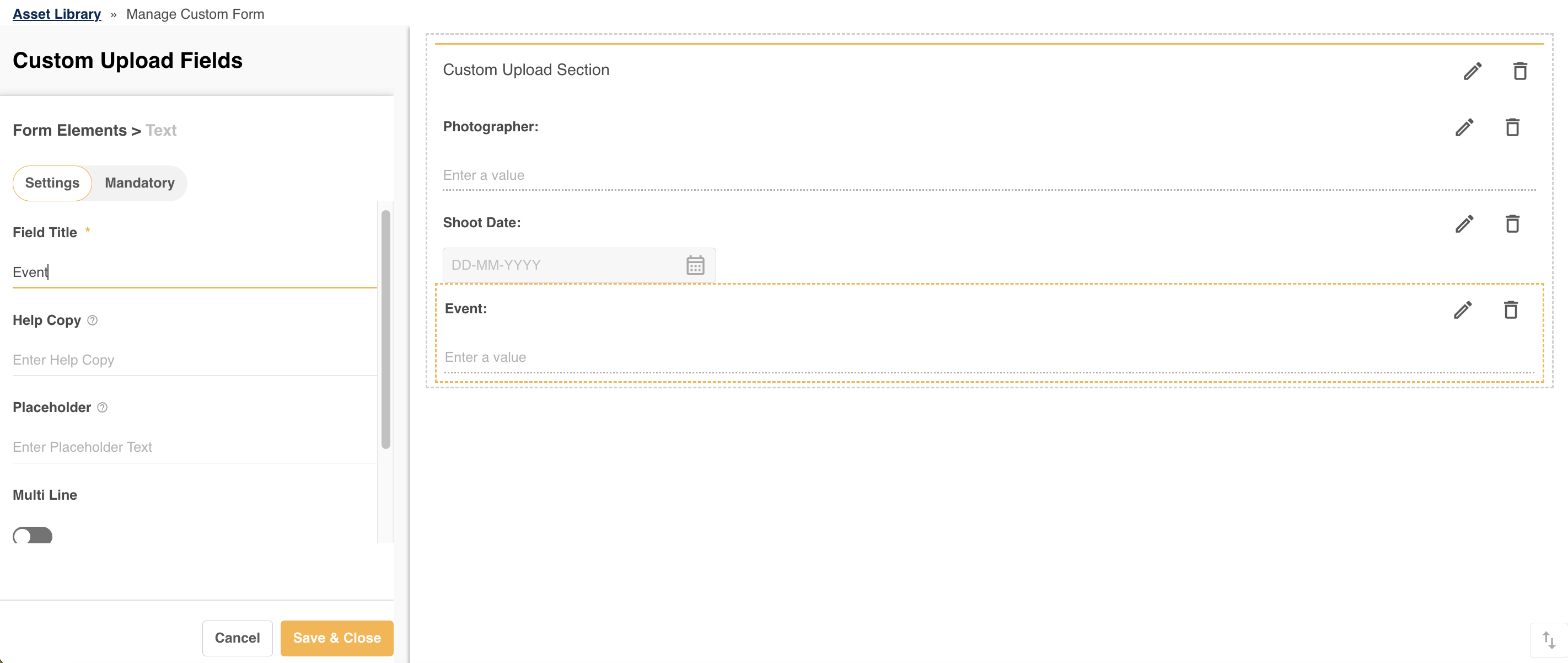 |
| 3 | Click Save & Close to add the field. Note that once you have clicked saved, these changes will automatically appear for all users uploading or updating assets on the platform. |
Things to Note:
- You can add up to 20 Custom Upload Fields.
- These fields will instantly apply to all assets added within the Asset Library.
- Once fields are added, they are immediately available to users when uploading or editing resources.
- You can also make fields mandatory by clicking the Mandatory tab once you select an element.
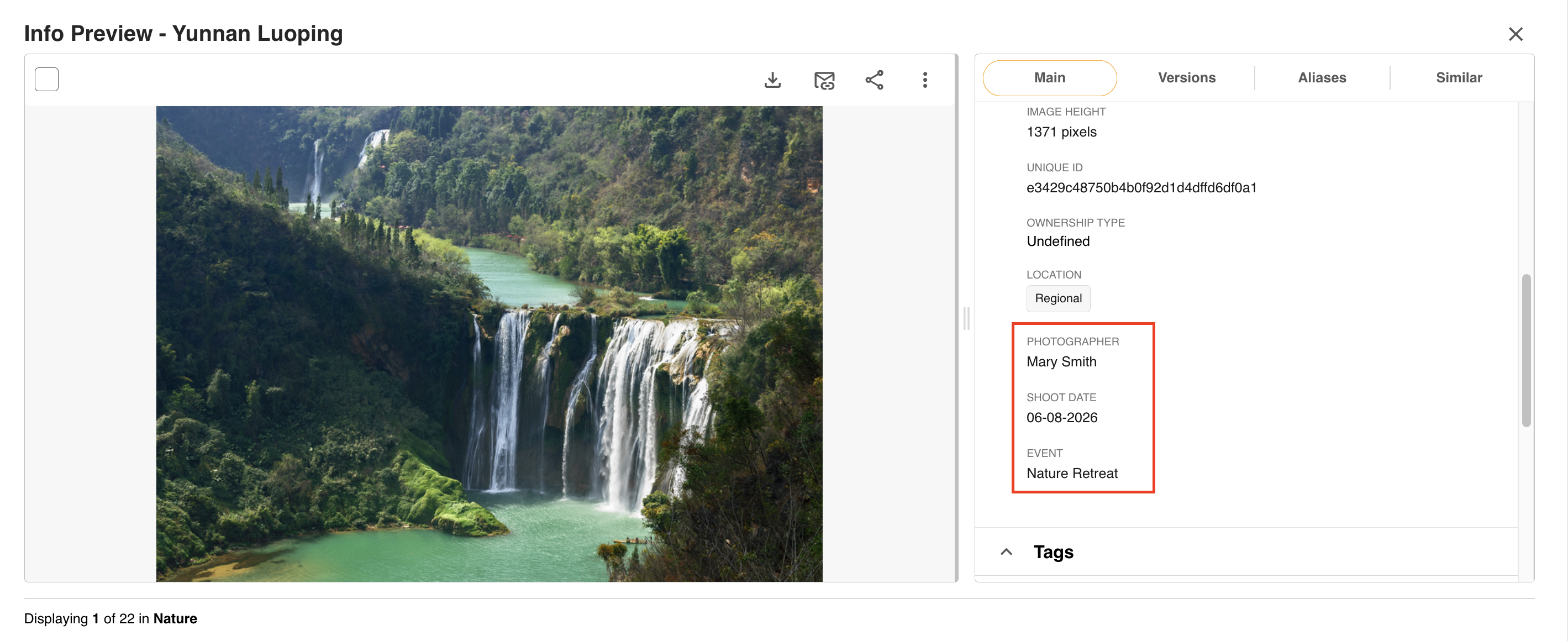
- Only fields with actual values will display in Info Preview or other locations.
- Custom Upload Fields cannot be made conditional at this time.
Supported Field Types
- Text
- Number
- Currency
- Website
- Select (including filters or custom values as a source)
- Date
- Note
- Phone
Adding or Updating Assets using Custom Upload Fields
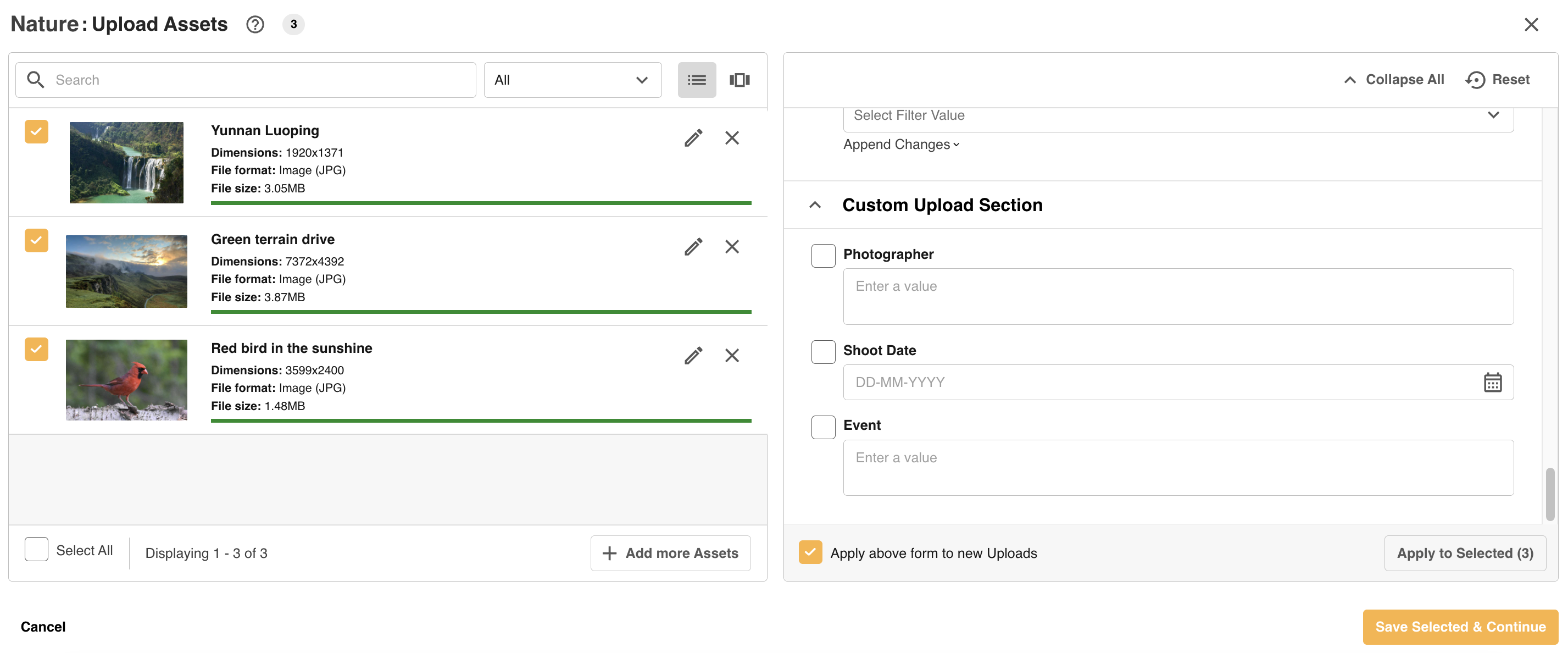
Once Custom Upload Fields have been successfully added, they will be available as soon as a user adds or edits an asset, whether it be in bulk or individually.
If an asset has been added or updated with the Custom Upload data, this detail will also appear on the Info Preview page (as indicated below).
Integration of Custom Upload Fields into Search Options
Search Filtering Side Panel
- Date Fields will be added to the Dates section
- All Text & Numeric Based Fields (text, website, email, number, currency, phone...) will be included by default in keyword based searches (in the main search bar) when All is selected in Search Scope (default)
- Select Fields will be listed in the Filters section
- All Text & Numeric Based Fields (text, website, email, number, currency, phone...) will also be available under in the Custom Rules section
Other Locations
- All Custom Upload Fields are available as display fields and filtering conditions in Stats and Dashboards
Advanced: Difference Between Filters & Custom Select Fields
Filters are pre-determined lists that can be used across multiple areas of the platform. Currently, only filters support folder-based field restrictions, or Division based values.
Note the following behavior for when a Custom Upload Select Field is added to the upload form, and the Source is set as a Filter (as set under Admin > Filters):
- Any restrictions on folders set under Admin > Filters will be ignored. The Folder Restriction applies to the filter itself, not its values.
- Any restrictions on Divisions set under Admin > Filters will still apply.
- Whether the filter is defined as Required/Mandatory, or single/multiple-select under Admin > Filters will be ignored. The Custom Field settings will apply instead.
To find out more about Custom Upload Fields please contact your Customer Success Manager.
You can find out more about other Metadata Mapping options here, or about the Asset module here.
Please note that the Resources terminology referenced above may appear as another name in your platform as these are customisable terms. You can see examples of what terminology may appear on your site here.
Was this article helpful?
That’s Great!
Thank you for your feedback
Sorry! We couldn't be helpful
Thank you for your feedback
Feedback sent
We appreciate your effort and will try to fix the article