IntelligenceBank Databases allow your organisation to build configurable forms users can fill out to capture key information you want to store and manage in a single, centralised platform. This tool is ideal for managing anything you would normally manage in a spreadsheet. Once a database is created, users are able to fill out a form and save it as a "record" within IntelligenceBank.
How Databases are Used
Databases are typically used for any digital form or briefing process you want team members to fill out, so they can be stored and managed directly in the platform. They are generally used for the following processes:
- Master Briefs
- Campaign Briefs
- Creative Briefs
- Tasks
- Request Forms
- Intake Forms
- Information Repositories
- Reviewing Marketing Content for Compliance Risk
Often, organisations use a wide variety of tools for submitting and managing briefs and their associated workflows. This makes it difficult to track or report on the progress of a brief, its data, and whether there are any roadblocks or bottlenecks. Databases enable many aspects of these processes to be centralised and tracked in one platform, providing greater visibility.
Because IntelligenceBank can also act as the single source of truth for storing digital assets with auditable approval workflows, a great benefit of using databases is the ability to connect all these features in one platform. This is particularly powerful for creative workflows, where IntelligenceBank can be used from the point of ideation (ie: the submission of a creative brief) through to the approval and deployment of creative deliverables within the Asset Library.
How to Create a Database
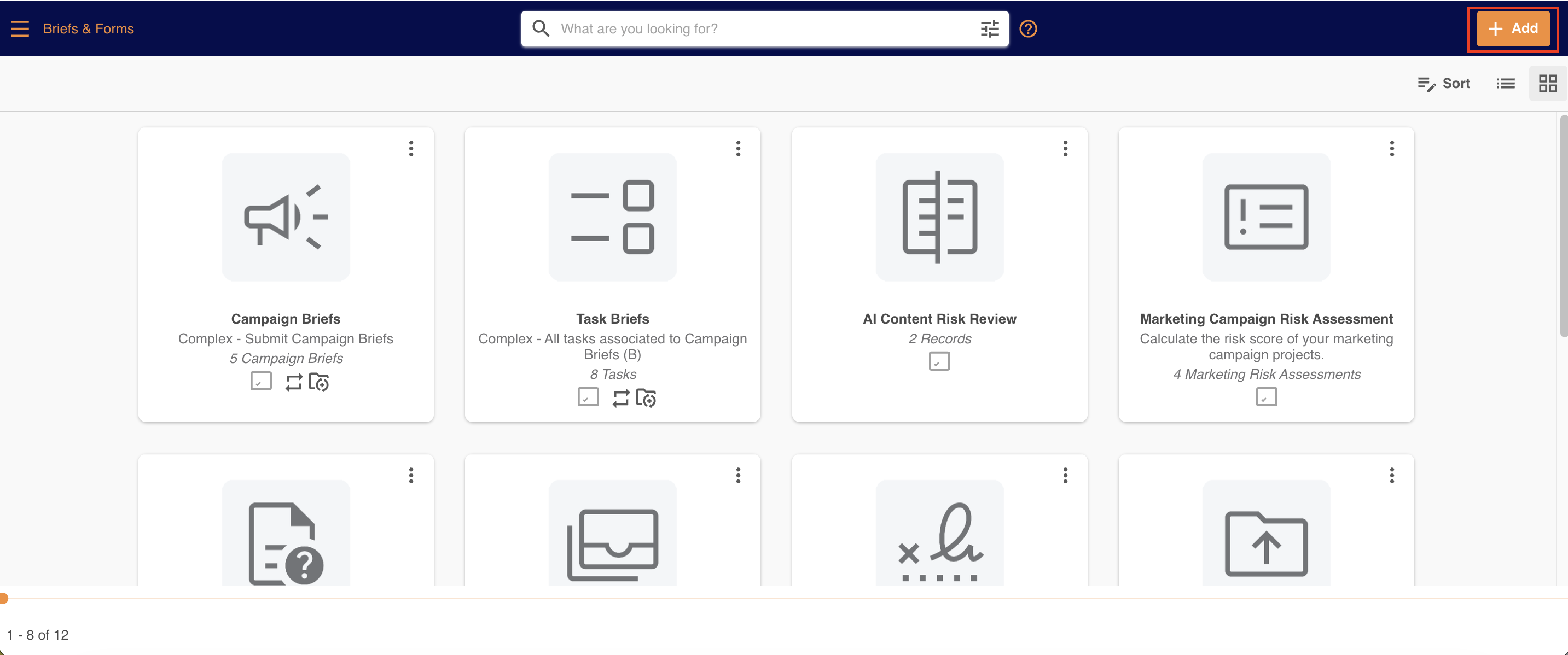
For organisations that have access to databases as a part of their product license, there should be a navigation tab called "Databases" in your platform. Note, the navigation tab name can be customised, so it may be called "Projects," "Briefs & Forms," or something else entirely. If you have any questions about where to find this tab, please reach out to your dedicated Customer Success Manager.
Databases can be created by:
- Main Admins
- Any user group that has Create (and generally Manage) or Admin permission on the database module itself
To create a database:
- Navigate to the Databases/Forms area of the platform.
- Select the + Add button in the top right hand corner of the screen
- Fill out the database form. The most notable fields are the Name field (it's recommended you name the database something straightforward ie: Task Briefs, Marketing Request Form, etc so it's easy for your users to understand what its purpose is,) and Submission Type: Single or Staged (see sections below on the different submission types).
- Many of the additional database settings/fields have default options already enabled. You can learn about each setting by hovering over the question mark icon. Additional articles here also cover off the settings in more detail.

- Once ready, select Save and Create Form at the bottom of the page. The database will be saved and you'll be able to configure the form with bespoke fields, which end users will fill out when submitting a record.
Single Databases
Single databases are a flexible option when it comes to deciding on the base structure of your database. You can easily separate groups of fields into pages if need be, minimising the chance for long forms, while providing simple navigation and ease of use for your users.
Effectively, when a user fills out a form on a single database, the form/record that gets published is viewable in its full form, even if some fields or pages haven't been filled out yet. There is no information in the form that is "hidden" behind a subsequent stage that is only accessible once the first part/stage of the form has been published.
Single databases are optimal for workflows that don't require strict segmentation on which parts of a form are filled out (and potentially approved) before other parts can be. They are the most common type of database and generally offer greater flexibility than staged databases, making them ideal for organisations that need workflows to remain more fluid or open.
Staged Databases
Staged databases can be used if you require your form creation to go through a staged/sequential process. Fields can be organised on different "stages" of the form, and when a user fills it out, they will be presented with the first stage fields only, without being able to see subsequent stages until the first stage is published. Only once the form/record has all its stages completed will end users be able to see all fields/information in the form, regardless of what stage they're in.
Although less common, staged databases are best for stricter, more linear workflows where you want to put an approval process in place before additional information is accessible and can be filled out within a form. Although reverting back to previous stages is possible (if, for example, edits need to be made,) users will not be able to view information filled out in subsequent stages until those stages have been reached again in the form.
Some notable limitations with staged databases are as follows:
- Conditional stages are not supported
- Permissions cannot be set on a stage basis within a form/record
- Viewing records in Kanban view is not supported
Was this article helpful?
That’s Great!
Thank you for your feedback
Sorry! We couldn't be helpful
Thank you for your feedback
Feedback sent
We appreciate your effort and will try to fix the article