Records* contain a set of questions or fields users can fill out and submit, which are then stored and viewable within a database. Records are how your team can manage and report on information relating to projects, tasks, briefs, requests, etc within IntelligenceBank.
How to Add a Record to a Database
To add a record to a database, users will need at least Create permission on the relevant database's record module.
There are several ways to add a record, as outlined below.
1. Adding a Record from the Database Home Page
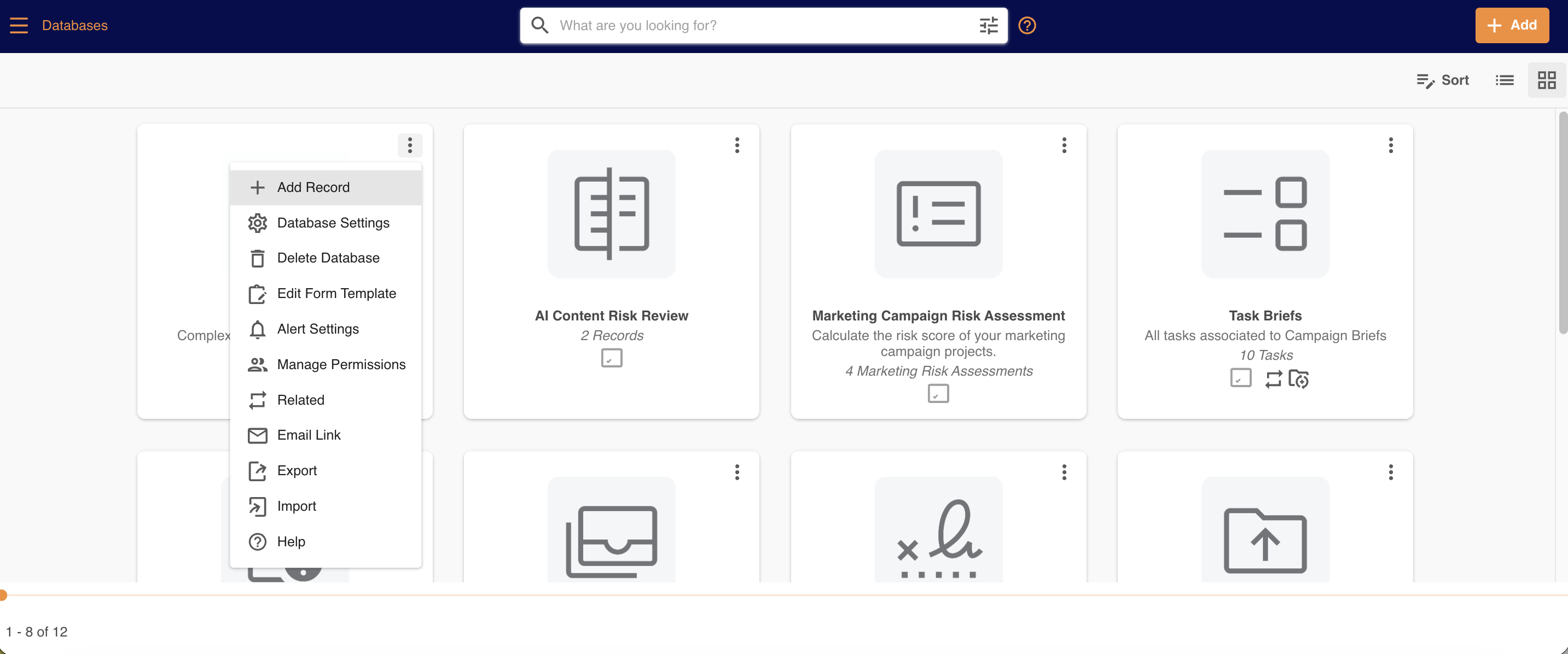
The database home page is the page containing a list of all the databases on the platform. To add a record from this page, click the dropdown icon in the right corner of the database. Then click Add Record.
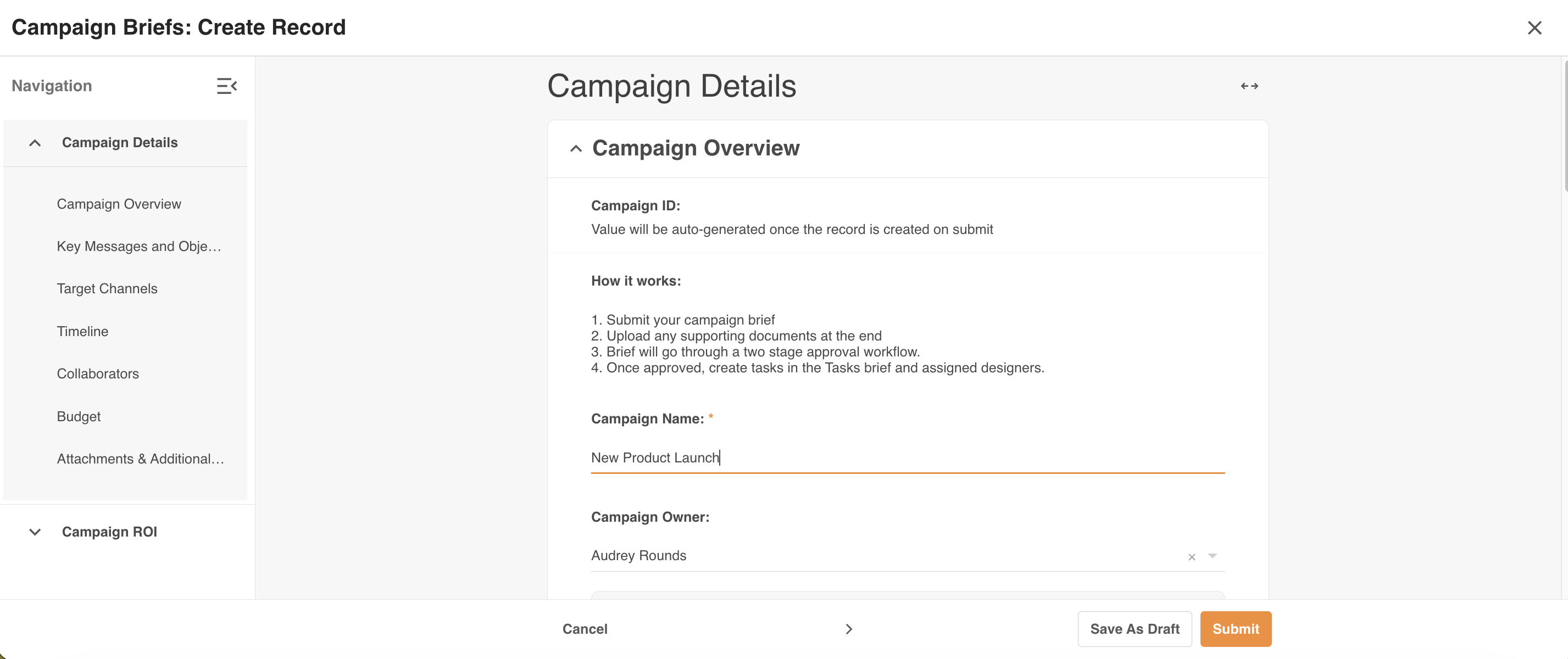
This will open up a blank record form, containing the list of fields as configured on the database. You can begin filling out the record.
2. Adding a Record from within a Database
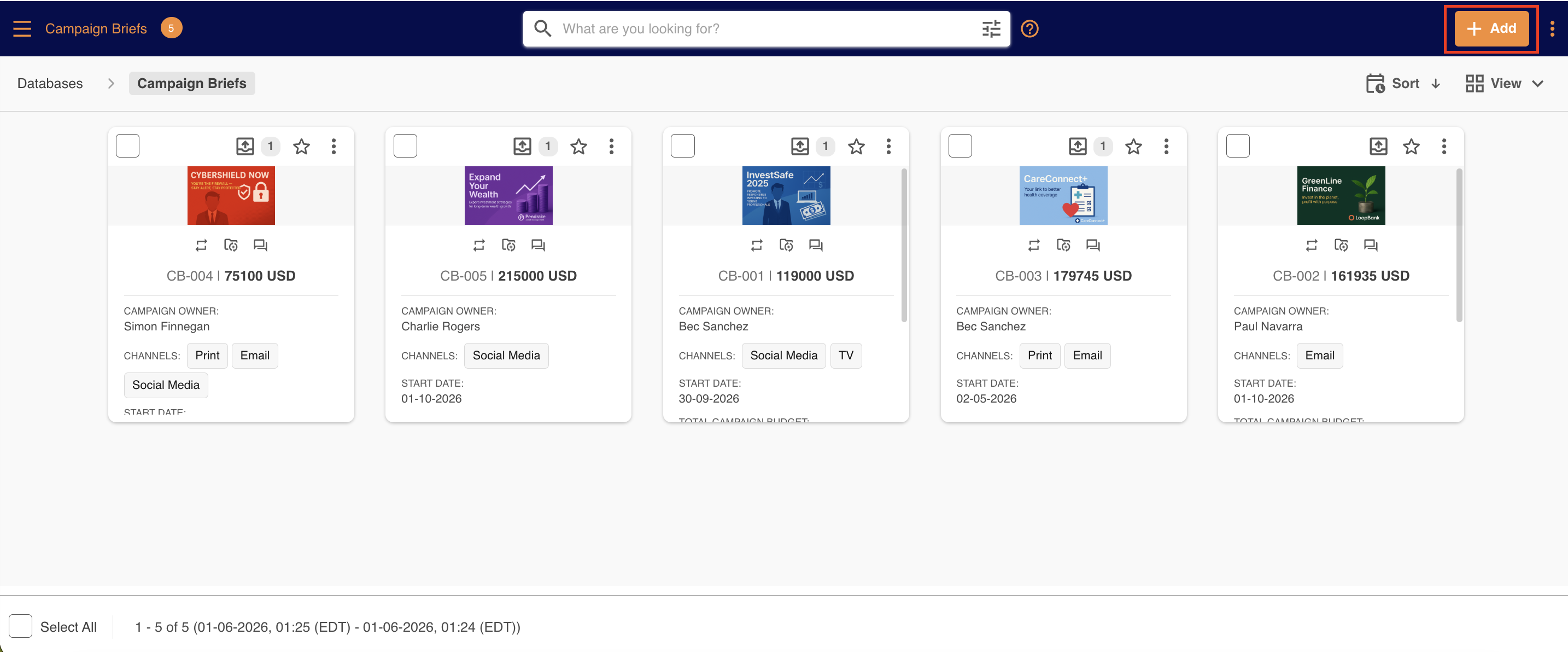
If you are within a database, click + Add in the top right hand corner and the blank record form will load, which you can begin filling out.
3. Adding a Record from the Calendar View
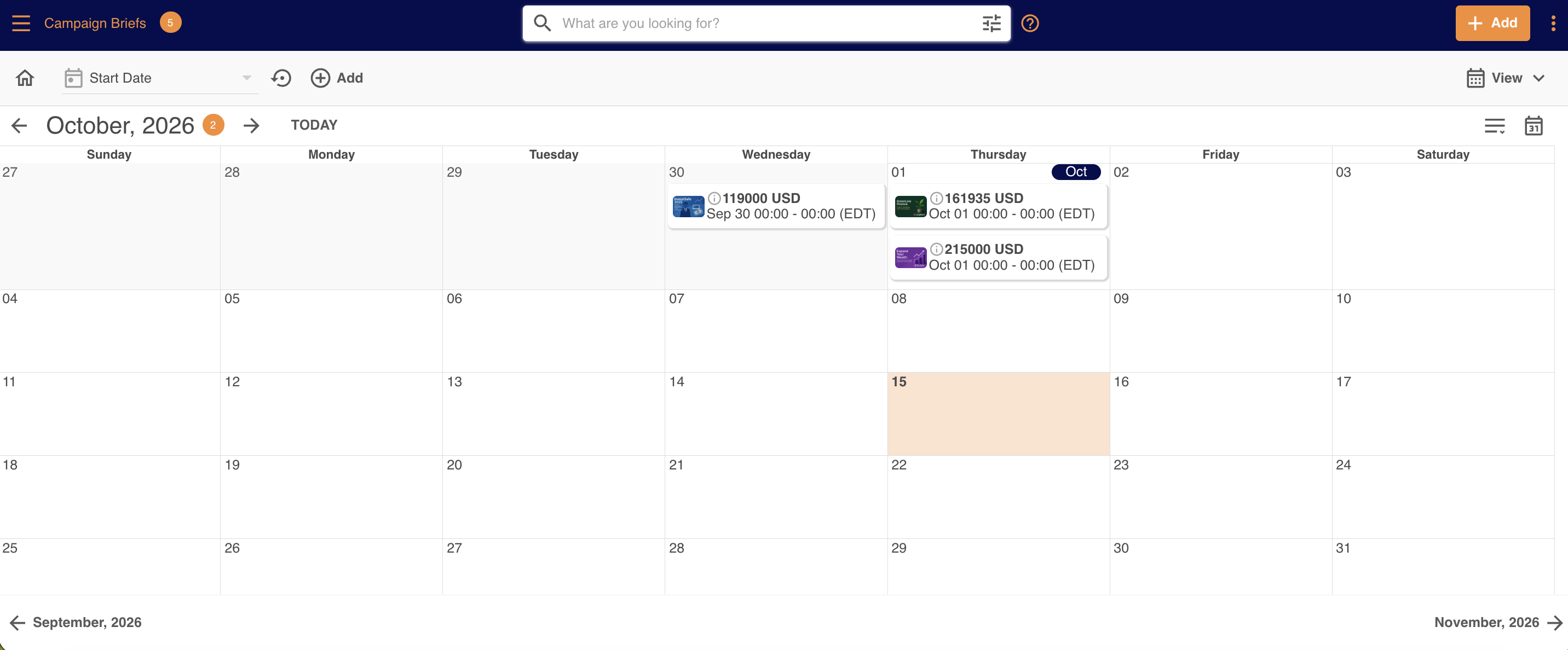
If you're viewing records within a database in calendar view, you can also add a record by clicking directly on a day within the calendar, which will open up the record form.
Filling Out a Record
Once the record form is open, fill out the relevant information. Note that because these forms are highly configurable, the types of fields and information captured will vary, depending on your organisation's requirements.
To save the record, scroll to the bottom of the form and you may see any of these options:
| Save & Exit | Appears for records in single databases with no publish approval workflow applied or for staged databases on the final stage |
| Save & Continue | Appears for records in a staged database with no publish approval workflow applied that are not in the final stage |
| Submit | Appears if there is a publish approval workflow applied on single databases or on relevant stage(s) in a staged database |
Select whichever option displays, which will either save the record to the database where it will be viewable immediately, or will prompt you to route it through approval (if there is a publish approval process involved).
Was this article helpful?
That’s Great!
Thank you for your feedback
Sorry! We couldn't be helpful
Thank you for your feedback
Feedback sent
We appreciate your effort and will try to fix the article