Once a record* has been saved (or approved), it can be viewed within the database.
Users may wish to view a record if they need to check the information added or learn about a new task they've been assigned. There are a few easy ways to view a record.
Viewing a Record
Users will need at least View permission on the relevant records in order to view them.
Within a Single Database
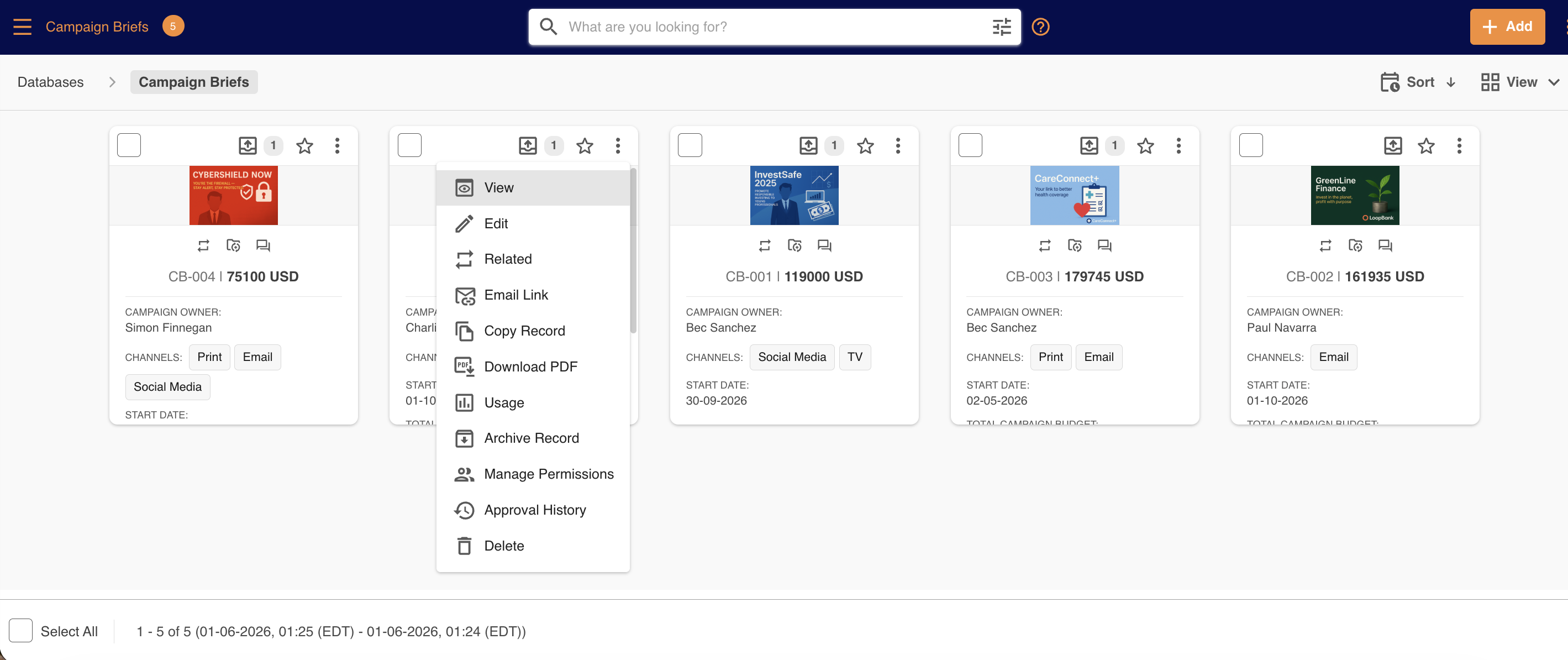
If the record is within a single database, click into the database, which will display the records you can view.
You can just click on the record to view its information, or select the three vertical dots to the right-hand side and select View from the action dropdown menu.
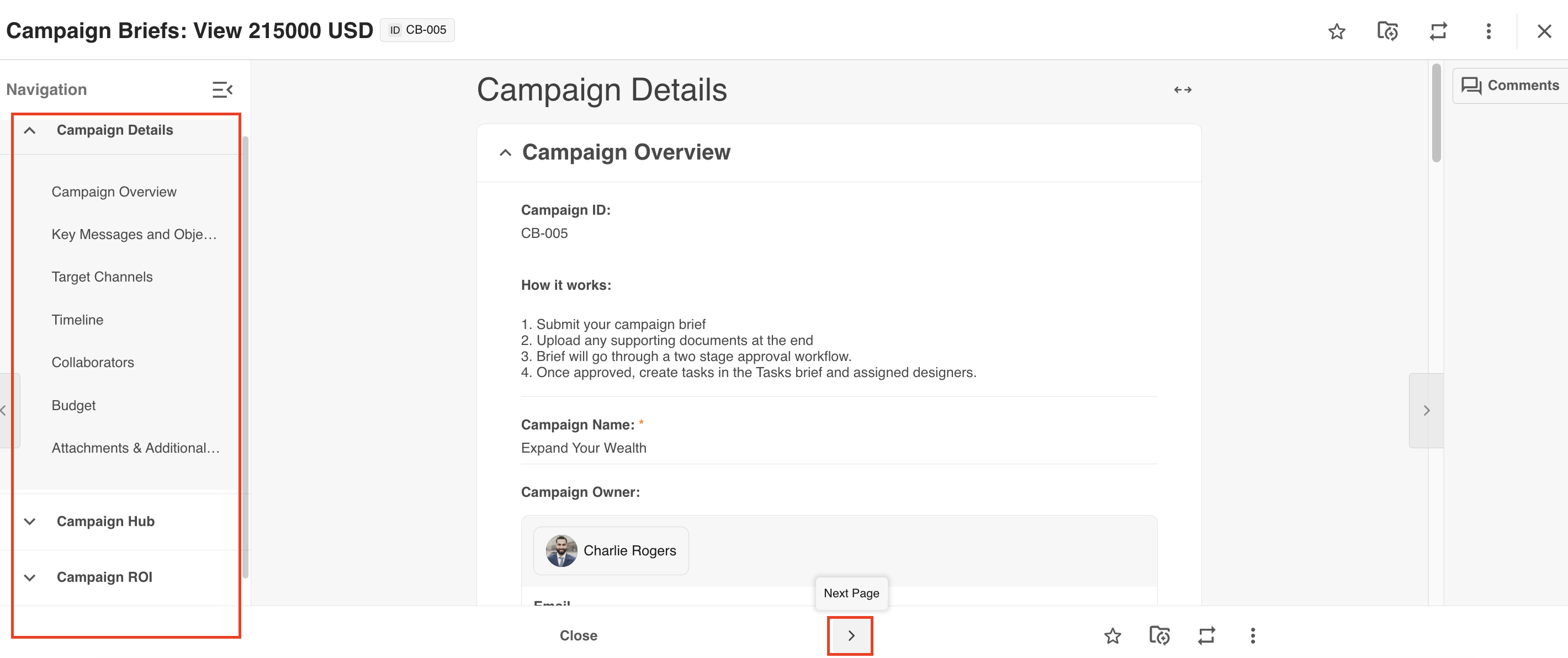
Once the record form displays, if there are multiple pages in the record, you can browse through these using the left-hand navigation, or by clicking the Next button at the bottom of the page.
Within a Staged Database
Records within Staged Databases can also be viewed at any time, as long as you have completed at least one stage.
You can see where the View action is, highlighted below.

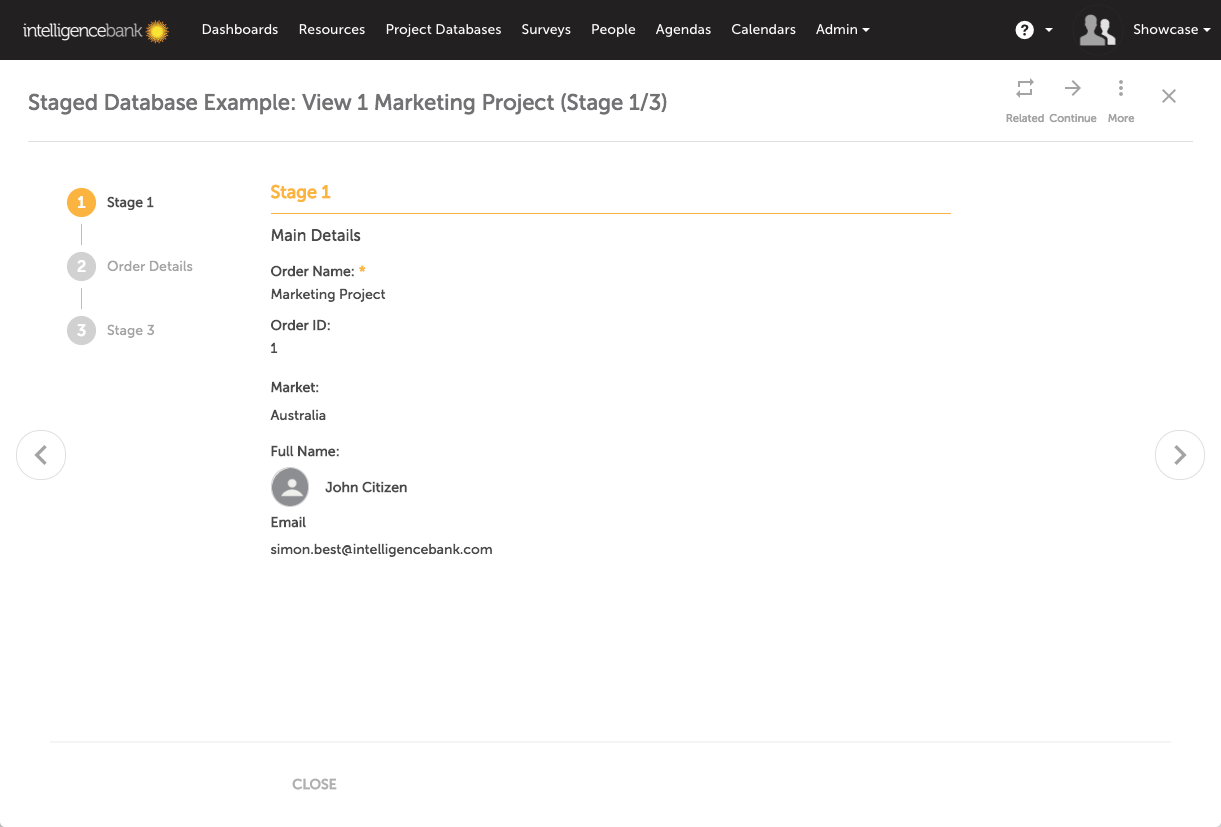
Once the record form displays, you'll be able to view all completed stages, navigating to different ones via the list at the top of the page. Any stages not enabled for view will appear greyed out, like Order Details and Stage 3 in the example below.
Was this article helpful?
That’s Great!
Thank you for your feedback
Sorry! We couldn't be helpful
Thank you for your feedback
Feedback sent
We appreciate your effort and will try to fix the article