The IntelligenceBank Connector for Optimizely CMS 12 lets editors browse, search and insert approved IntelligenceBank assets, as public CDN links or local copies, without leaving the CMS. A single package delivers three ways to bring assets in: a dedicated Assets Block, a property asset-picker, and inline insertion from the rich-text editor.
Compatibility
The connector was built for Optimizely CMS 12 on a target framework of .NET 8.0. It works with any standard CMS 12 deployment, whether self-hosted (on-premise or your own cloud) or cloud-hosted on Optimizely DXP (PaaS). Self-hosted and DXP run the same .NET application and differ only in where it is hosted, so the connector installs identically on both.
This connector is not compatible with Optimizely CMS SaaS (SaaS Core). SaaS Core is a separate, headless, versionless product, not a "version" of CMS 12, and does not run a server-side .NET application, so it cannot load the NuGet package or the server-side configuration the connector depends on. SaaS Core support may be added in the future.
Table of Contents
What the Connector Does
- Assets Block - drop a dedicated block onto any page and insert one or more IntelligenceBank assets.
- Property asset-picker - add an IntelligenceBank picker to a content property, so an asset can be chosen inline in the edit form (for example a hero image).
- Rich-text insertion - insert an asset at the cursor from the CMS rich-text (TinyMCE) toolbar.
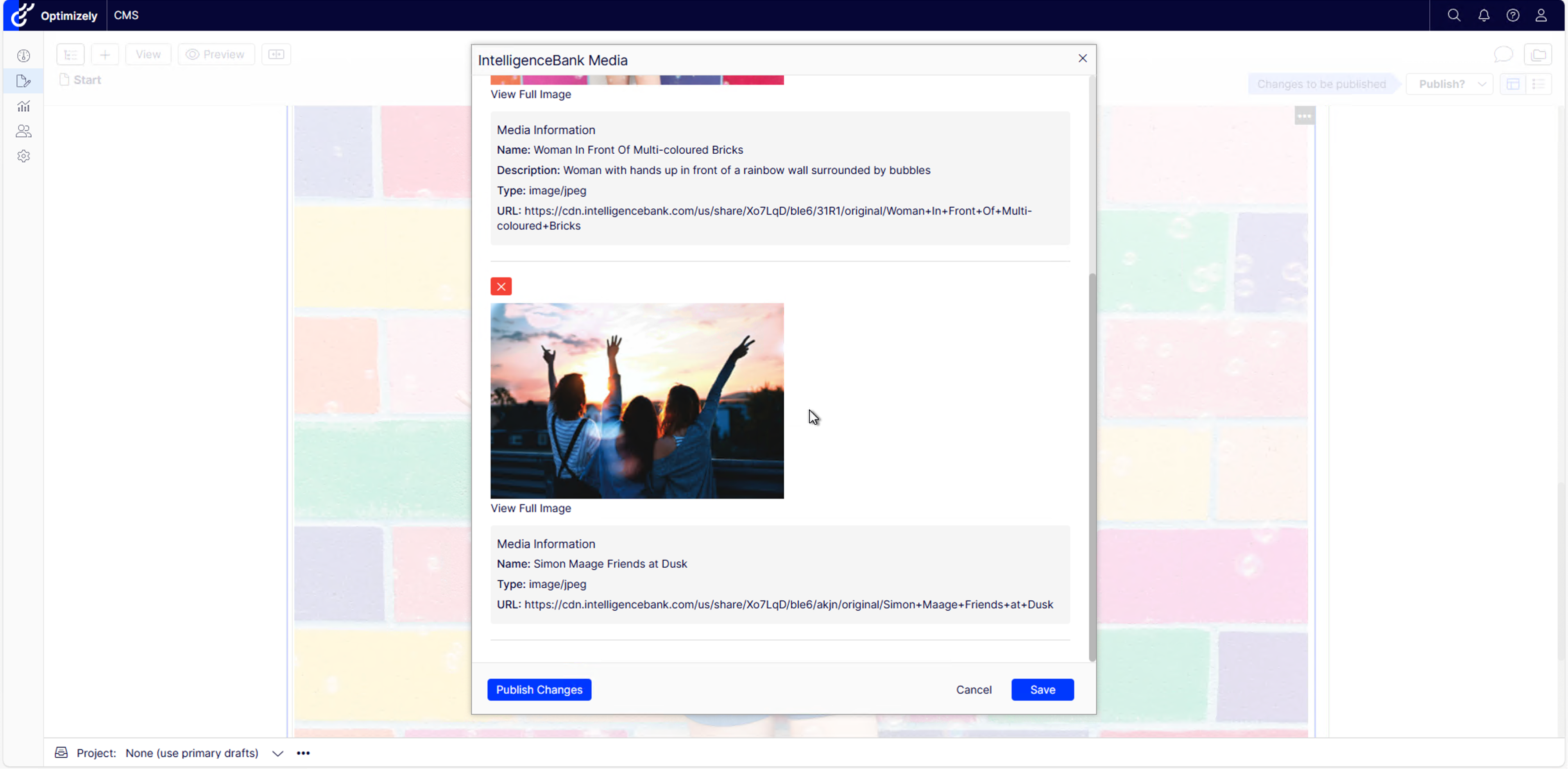
- CDN links or local copies - insert assets as public IntelligenceBank CDN URLs, or download and store a local copy in Optimizely.
- Multiple assets per block - the Assets Block accepts several assets at once.
- One package, all patterns - everything ships in a single NuGet package, and each pattern is turned on through configuration.
Requirements
- Optimizely CMS 12 on .NET 8 (self-hosted or Optimizely DXP). Not compatible with CMS SaaS Core, per the Compatibility note above.
- An active IntelligenceBank account with access to the assets you want to insert.
- Editors reach the IntelligenceBank web app over HTTPS, as the embedded app relies on secure session cookies.
Installing the Connector
Download the NuGet package IntelligenceBank.OptimizelyCMS12, add it to your Optimizely CMS 12 project, and rebuild the solution.
The connector is a Razor Class Library, so installation is just a package reference: no source files are copied into your project and no manual Startup.cs changes are needed. Once installed, add the IntelligenceBank configuration section below.
Configuration
Add an IntelligenceBank section to your site's appsettings.json. Only PlatformURL is typically required; every other setting has a sensible default.
"IntelligenceBank": {
  "PlatformURL": "mycompany",
  "InsertionMode": "publicLinks",
  "EnableCustomURL": false,
  "EnableBrowserLogin": false,
  "EnableRichTextPlugin": true,
  "IFrameEndpoint": "https://ucprod.intelligencebank.com/app/",
  "AllowedDownloadHosts": "intelligencebank.com"
}| Setting | What it does |
|---|---|
PlatformURL | Your IntelligenceBank sub-domain to load by default, without https:// (for example mycompany). When Custom URL is off, editors cannot change it. |
InsertionMode | publicLinks inserts the IntelligenceBank CDN URL. localDownloads downloads the asset and stores a local copy in Optimizely. |
EnableCustomURL | Lets editors enter a custom IntelligenceBank platform URL in the sign-in dialog instead of the fixed one. Defaults to false. |
EnableBrowserLogin | Uses IntelligenceBank browser-session login (for SSO users) instead of the standard email and password prompt. Defaults to false. |
EnableRichTextPlugin | Adds the IntelligenceBank button to the TinyMCE rich-text toolbar. Defaults to false. |
IFrameEndpoint | The IntelligenceBank app endpoint embedded in the picker. Do not change unless IntelligenceBank directs you to. |
AllowedDownloadHosts | Used with localDownloads only: the hosts the connector may download assets from before storing them locally. |
The Assets Block
The Assets Block is the most common way to use the connector: editors add a block to a page and insert one or more IntelligenceBank assets into it.
Add the block
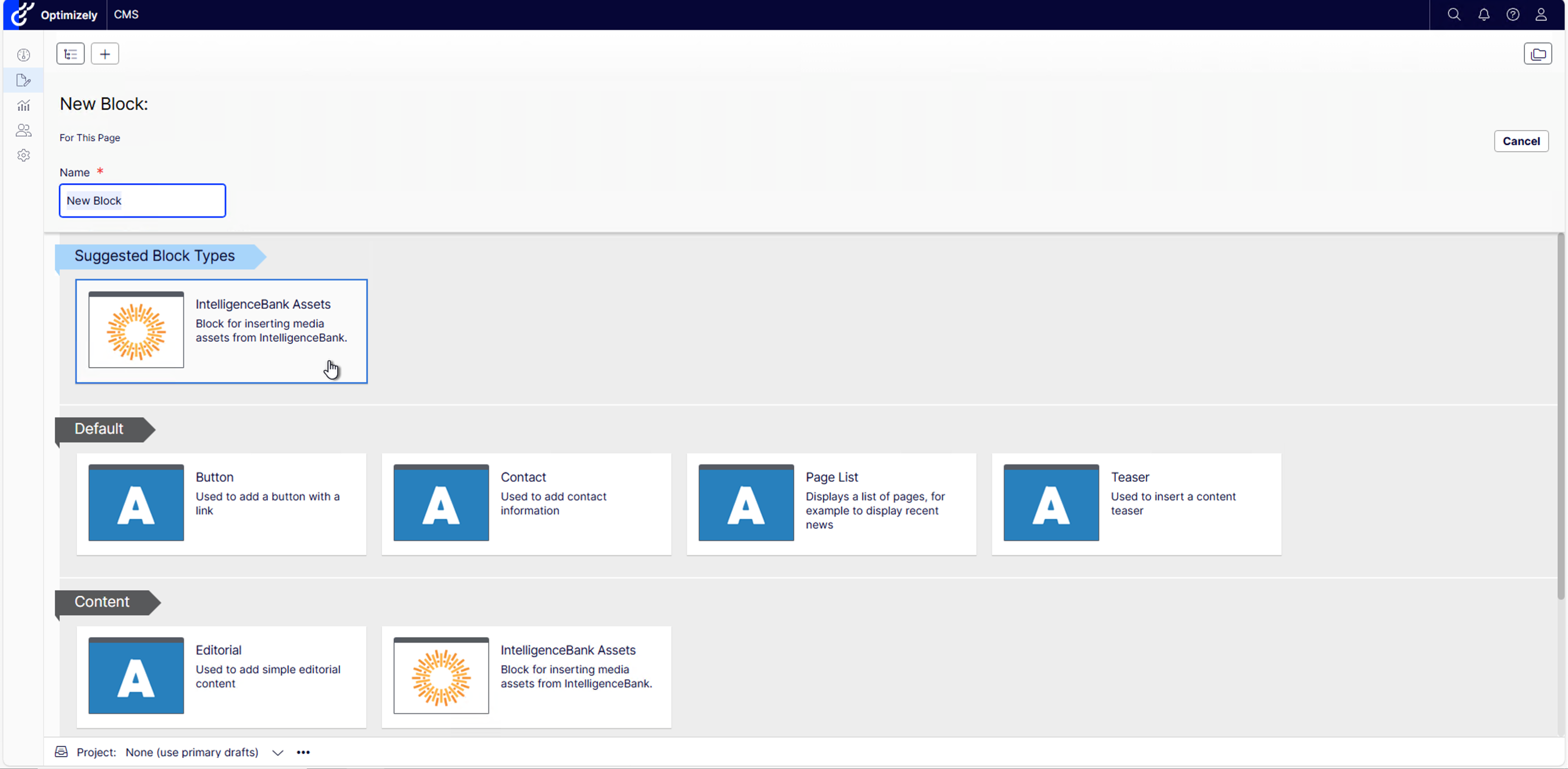
Add a new block and choose IntelligenceBank Assets from the available block types, then give it a name and create it.
Sign in and insert assets
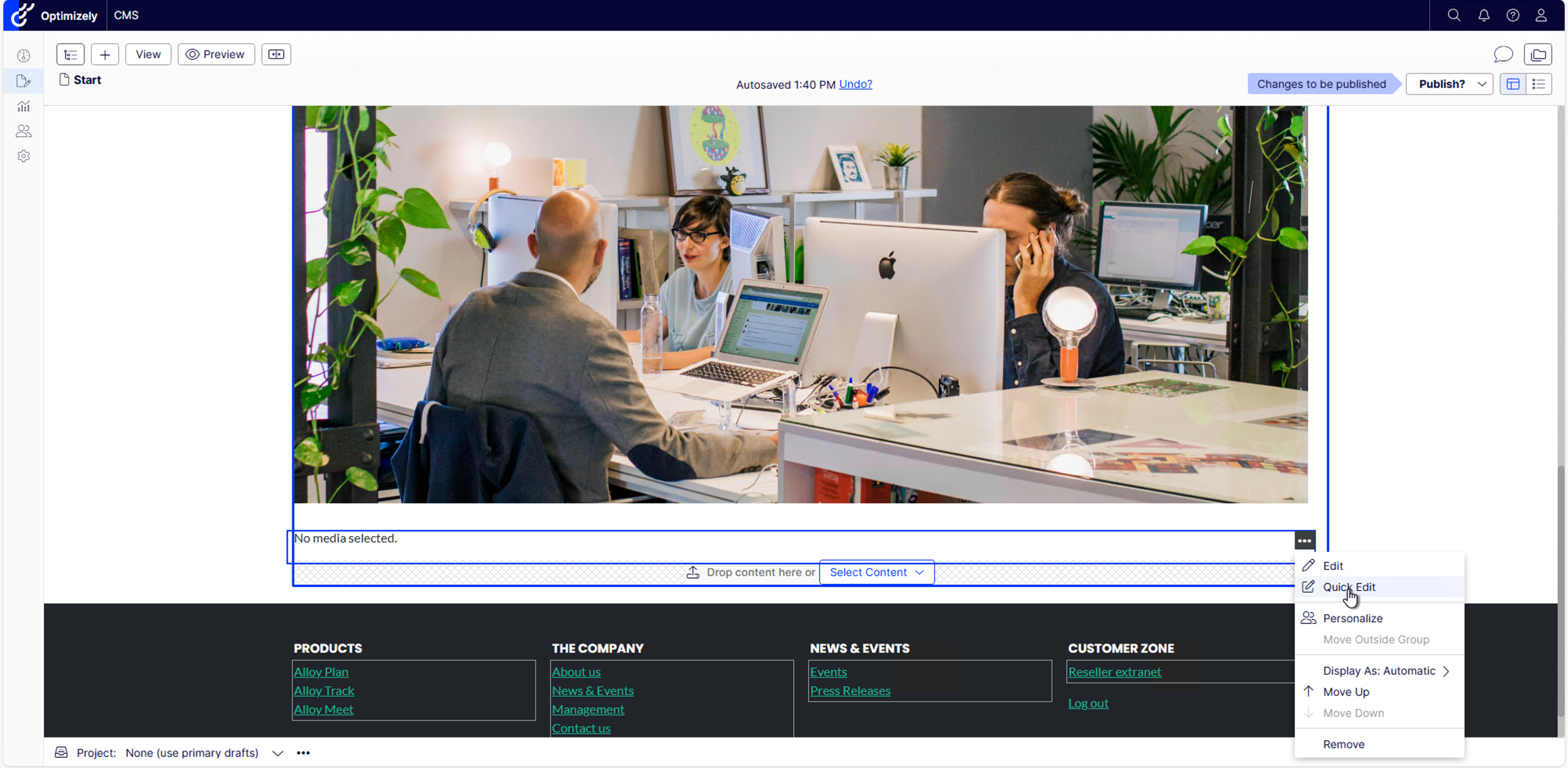
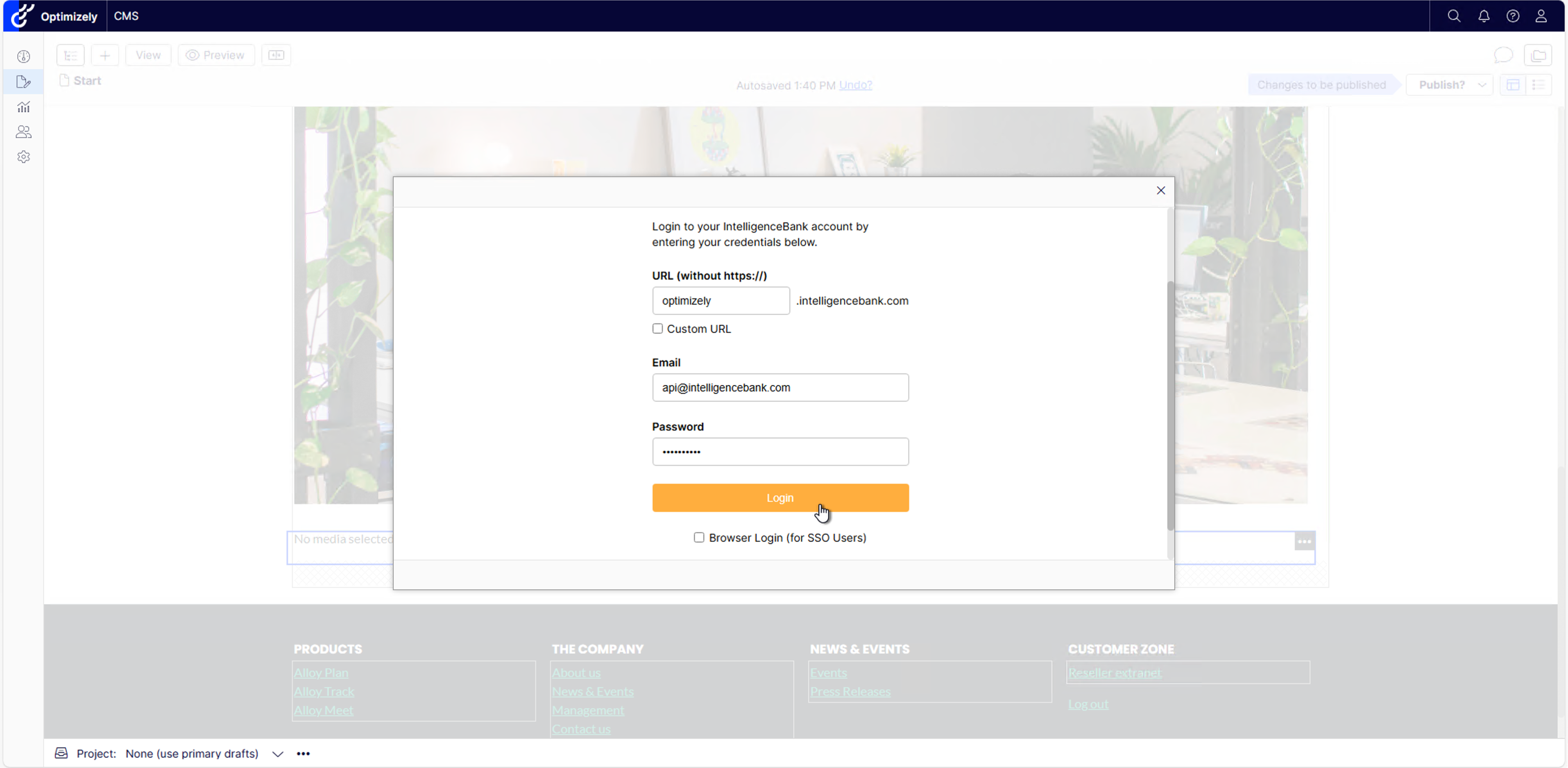
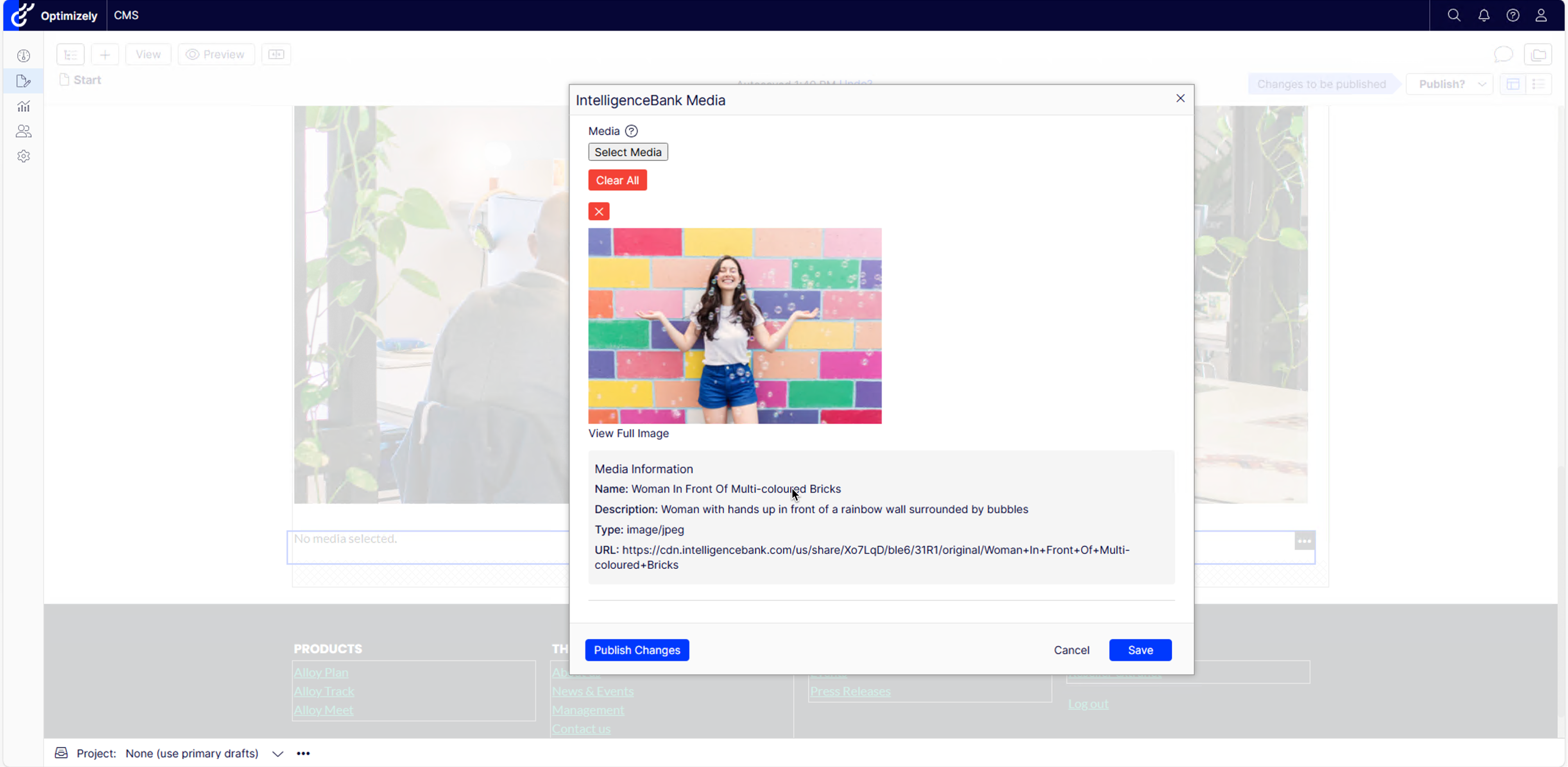
Once the block is on your page, open it to edit. Sign in to your IntelligenceBank platform, then browse or search and select the assets you want. Save to insert them. Multiple assets can be added to a single block.

The Property Asset-Picker
For a single asset on a specific field, such as a hero image or thumbnail, a developer adds the [IntelligenceBankAsset] attribute to a string property on a page or block type. Editors then get an inline IntelligenceBank picker on that field in the edit form, and the chosen asset is stored on the property, using the same sign-in, browse and select experience as the block.
Rich-Text Insertion
With EnableRichTextPlugin set to true, an IntelligenceBank button appears on the rich-text (TinyMCE) toolbar. Editors click it, choose an asset, and it is inserted at the cursor as an image, video, audio player or link, depending on the asset type.
Data and Security
- Encrypted in transit - all communication with IntelligenceBank uses HTTPS / TLS.
- Your authentication - sign-in is delegated to your IntelligenceBank platform, including SSO via Browser Login. The connector does not store your IntelligenceBank credentials.
- Same platform controls - assets you insert respect the permissions and access controls configured on your IntelligenceBank platform. When storing local copies, downloads are restricted to allow-listed IntelligenceBank hosts.
Need Help?
For help configuring the connector or access to additional assets, contact IntelligenceBank. For connector-related issues that need our team, you can submit a ticket.
Get the Connector on NuGetWas this article helpful?
That’s Great!
Thank you for your feedback
Sorry! We couldn't be helpful
Thank you for your feedback
Feedback sent
We appreciate your effort and will try to fix the article