This guide walks you through running your first Audio / Video Risk Review, from uploading a file to reviewing and dismissing findings.
Table of Contents
Step 1: Upload Your File
Open the record you are working on and find a field that has Risk Review enabled. Upload your video or audio file into that field, the same way you upload any other file.
You can upload common video and audio formats. IntelligenceBank prepares the file for you (converting and compressing as needed), so in most cases you do not need to convert files yourself.
Step 2: The Review Runs
How a review starts depends on how your fields are configured. Your administrator controls which behaviour applies.
| Review Mode | How It Starts |
|---|---|
| Automatic | If the field is set to review automatically, the review begins as soon as your file finishes uploading. |
| On demand | Otherwise, you start the review yourself using the Risk Review option on the file. |
IntelligenceBank first prepares the file and, where spoken-word review is included, produces a transcript. It then checks the content against your configured rules.
Step 3: Read the Findings
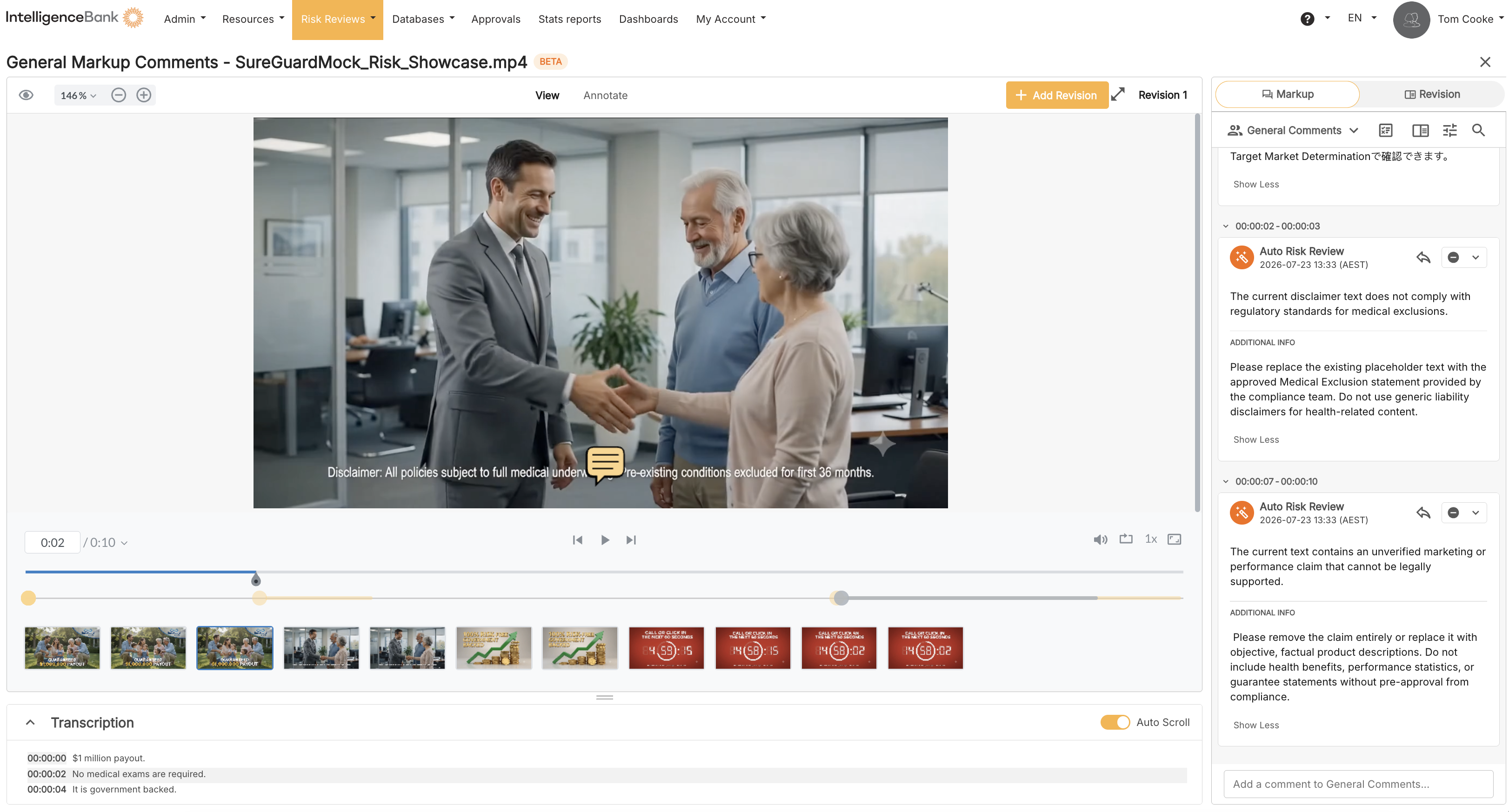
When the review completes, flagged risks appear against the file, grouped by where they occur in time. Click a finding to jump the player straight to that moment. For risks that appear on screen, a marker highlights the area of the frame where the risk was detected.
Step 4: Dismiss What Is Not Relevant
Work through each finding. If a finding is not relevant, you can dismiss it, exactly as you do for document Risk Review. Your administrator configures the list of available dismissal reasons.
Action the remaining findings and, if needed, upload revised files for a re-review. Then continue with your normal approval or publishing process.
Need Help?
If a review won't start or you can't see a Risk Review field, contact IntelligenceBank Support.
Contact SupportWas this article helpful?
That’s Great!
Thank you for your feedback
Sorry! We couldn't be helpful
Thank you for your feedback
Feedback sent
We appreciate your effort and will try to fix the article