If you need to reply to a markup comment, you can do so in two main ways:
- Through an email alert
- Directly in the platform
Replying through Email
To reply to a markup comment through the email alert:
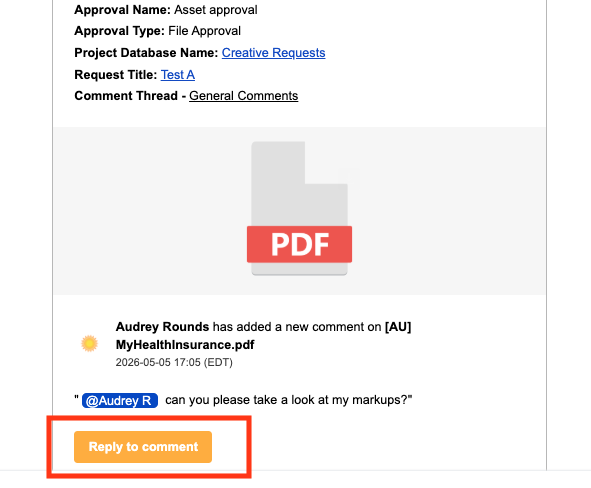
- Click the Reply to comment button in the email you receive
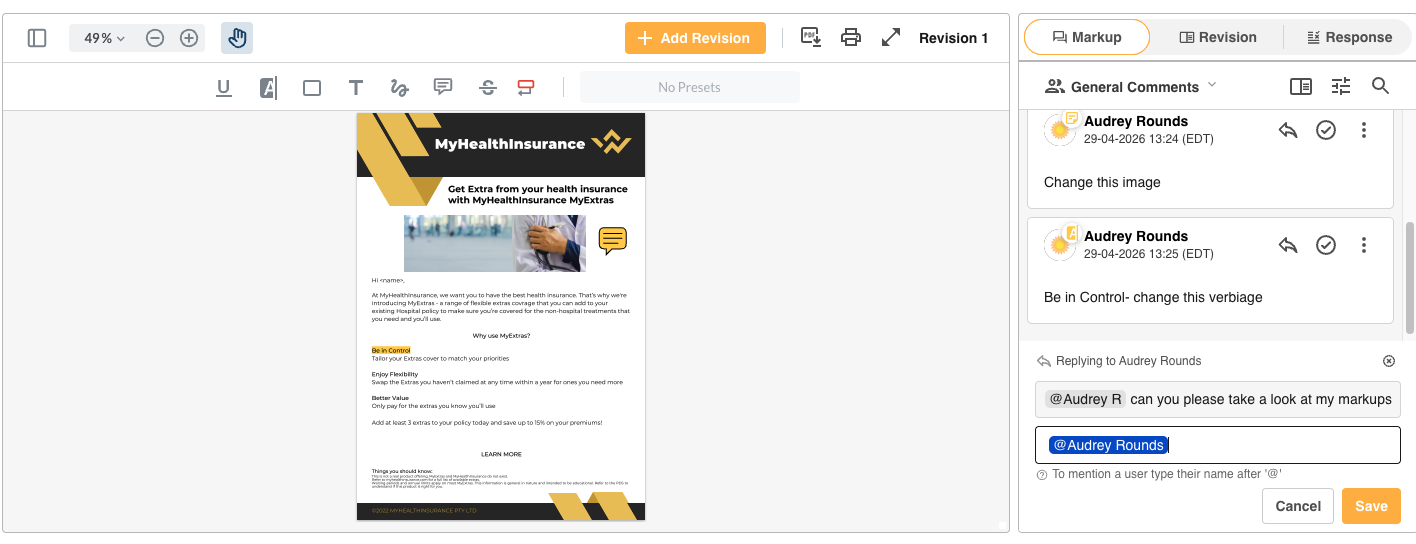
- This will take you directly to the markup comments area within the platform, with an automatic reply window already pre-loaded
- Write your response and click Save
Replying Directly in the Platform
To reply to a markup comment directly in the platform:
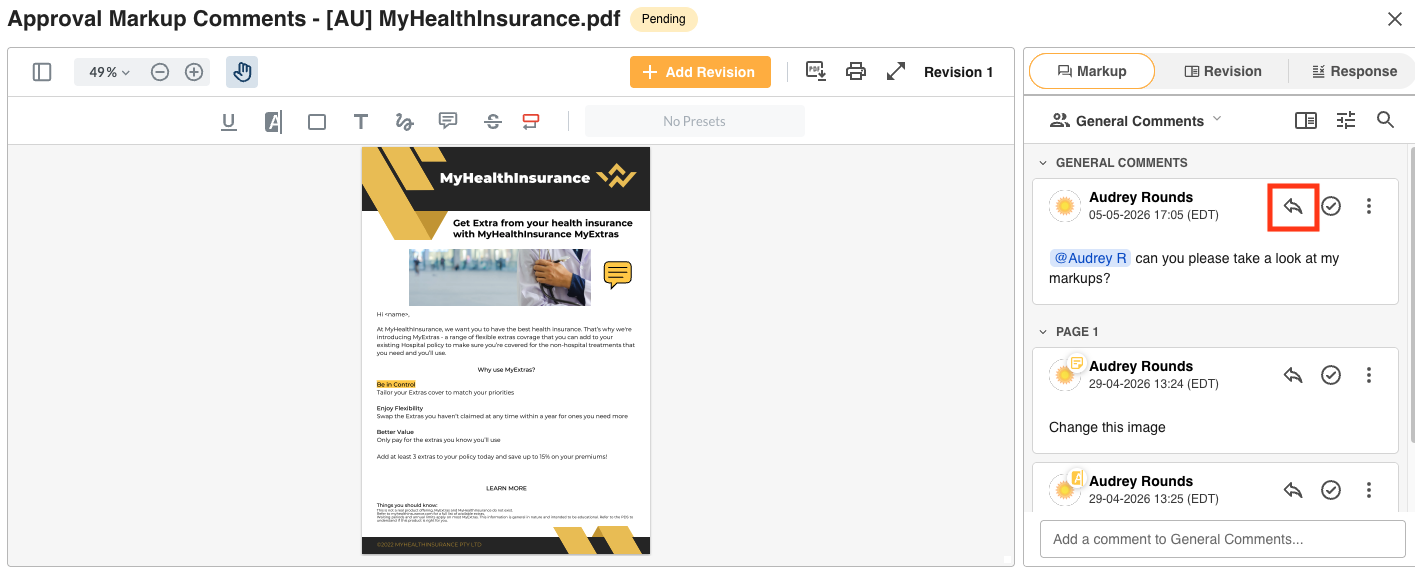
- Navigate to the asset's markup comments panel
- Locate the comment you need to reply to
- Click the Reply (arrow) icon in the comment, which will open up the reply window
- Write your response and select Save
Note: You will not be able to respond to the comments if the request has already been approved or declined. You will still be able to view already saved comments, however.
Was this article helpful?
That’s Great!
Thank you for your feedback
Sorry! We couldn't be helpful
Thank you for your feedback
Feedback sent
We appreciate your effort and will try to fix the article