Emulating a user allows Main Admins to use the platform with the same user and permission settings as a specific user. This is useful for checking a user's profile remotely, testing recently updated permissions, or troubleshooting issues a user has flagged.
How to Emulate a User
Navigate to Admin > Users, locate the relevant user, and select the Emulate button.

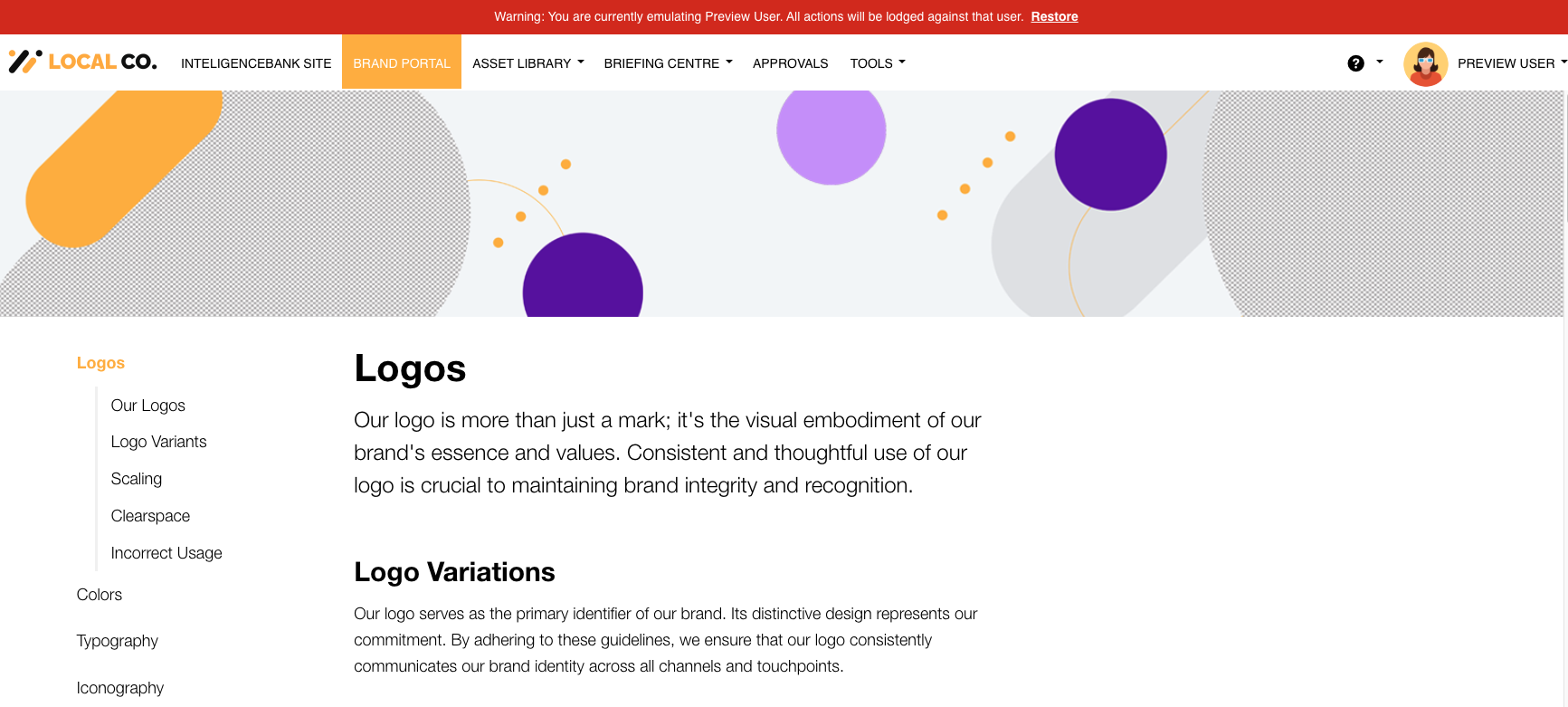
Your screen will refresh and you will be able to view the platform through the "eyes" of the user you're emulating. A red banner will appear at the top of every page to remind you that you are emulating another user.
Restoring Your Profile
To return to your own profile, select the Restore link in the red banner. This will end the emulation session and resume control of your own profile.
Was this article helpful?
That’s Great!
Thank you for your feedback
Sorry! We couldn't be helpful
Thank you for your feedback
Feedback sent
We appreciate your effort and will try to fix the article