This article explains how IntelligenceBank Main Admins can add, search, edit, delete, and bulk-manage users from within the platform's Admin area.
Table of Contents
Adding a New User
To add a new user, navigate to Admin > Users and click the Add New User icon.
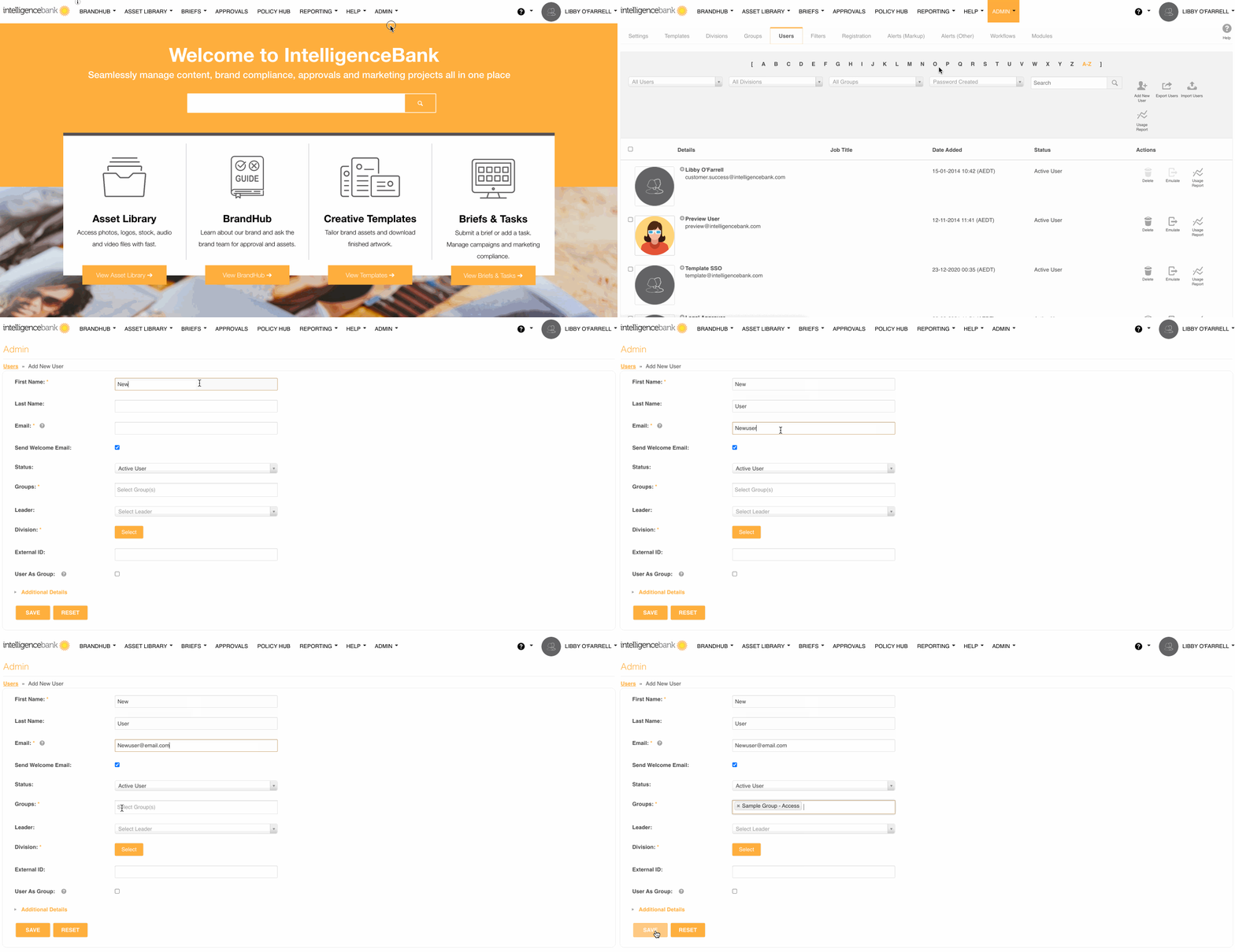
Complete the following fields:
| Field | Description | Required |
|---|---|---|
| First Name | User's first name. | Yes |
| Last Name | User's last name. | Optional |
| Email Address | Serves as the user's login username. | Yes |
| Send Welcome Email | Sends a password-setup link to the user. Only applicable when using IntelligenceBank login credentials. Not available for SSO users. | Optional |
| Status | Active: user can log in immediately. Suspended: user is added and counts against your licence limit but cannot log in until activated. Consider adding users as Suspended if, for example, you are onboarding new hires who start at a later date but want to add them to the system ahead of time. | Yes |
| User Groups | Assign one or more groups to the user to apply the relevant permission levels. This defines what information/areas of the platform your user is able to access. | Yes |
| Leader | Assigns the user's supervisor or manager. Leaders can also be used in approval workflows as the designated reviewer. | Optional |
| Division | Assigns the user to a specific division within your organisation. | Yes |
| External ID | A free-text reference, useful for storing an employee ID or other identifier. | Optional |
| User as Group | Enables individual permission levels for this user, independent of their assigned group permissions. Useful for permission exceptions best handled on a user-by-user basis. | Optional |
| Additional Details | Job title, company, phone number, and other supplementary information. | Optional |
Once all relevant fields are completed, click Save. If the Send Welcome Email option was selected, the user will immediately receive an email with a link to set their password and access the platform.
Note: SSO users will not receive a welcome email from IntelligenceBank. Their credentials are managed through their organisation's SSO instance, not within IntelligenceBank.
Searching for Users
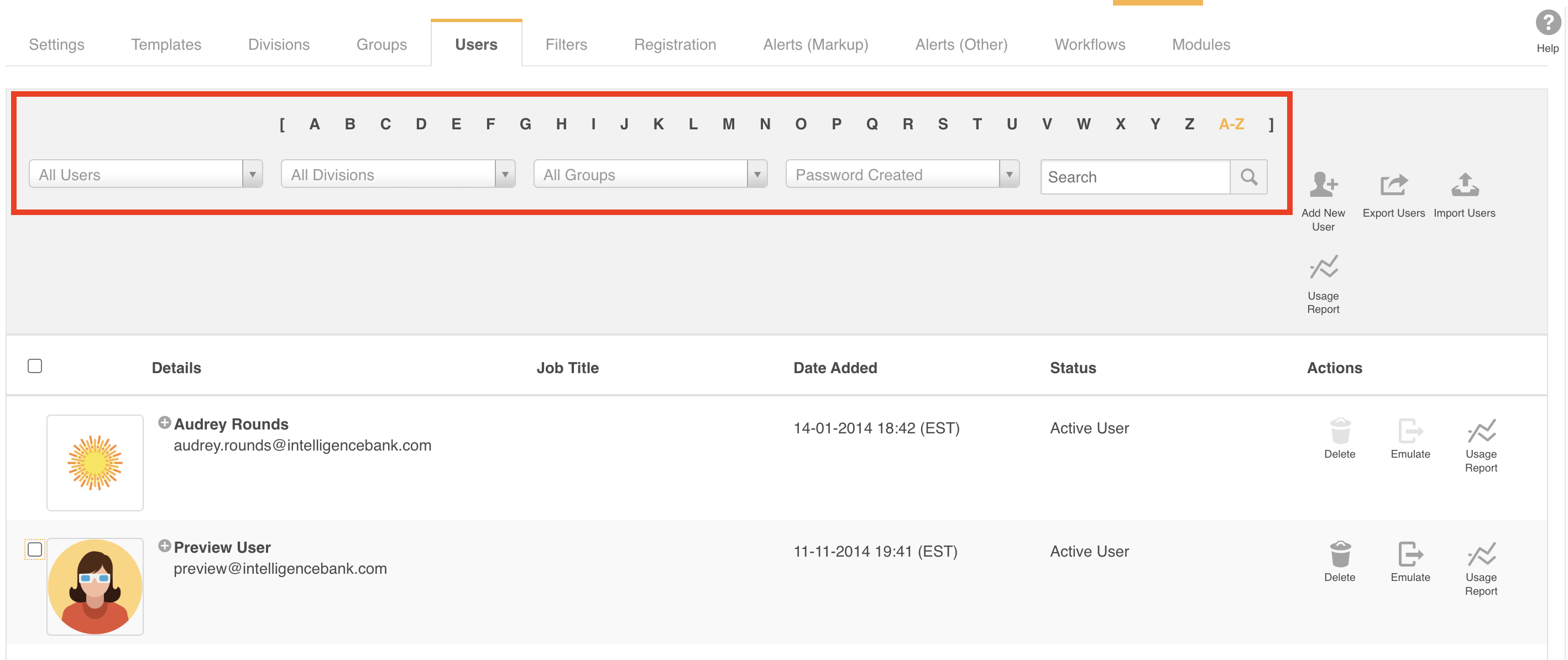
From Admin > Users, you can locate users using several methods:
- By Letter: click a letter at the top of the user list to display users whose name begins with that letter.
- Search bar: type the user's name and click the search icon to find them directly.
- Status filter (All Users dropdown): filter users by status:
- Active: users can log in and use the system.
- Suspended: cannot log in or use the system; however historical data is maintained.
- Blocked: email cannot be used in the system.
- Deleted: user deleted from the system.
- If you're utilising Self-Registration approvals, the following statuses will also be relevant:
- Pending: registration is pending approval.
- Declined: log in declined.
- Approved: log in approved.
- Division filter: show only users assigned to a specific division.
- Group filter: show only users belonging to a particular group.
- Password Created filter: identify users who have or have not yet set their password. This is handy information to know ahead of platform launches or when doing an audit on your platform users and usage.
Editing a User
To edit a user, locate them in the user list and click their name. Their profile will open and all fields are editable. For example, you can change their status, update their group assignments, adjust their division, and more. When finished, click Save to apply the changes.
Deleting a User
To delete a user, click the Delete icon next to their name and confirm when prompted. Once deleted:
- The user is removed from your license limit.
- The user record is retained in the system as a deleted user and remains visible when filtering by Deleted users for auditing purposes.

Bulk Actions
You can apply actions to multiple users at once using the checkboxes on the left of each user row. Select the relevant users, then scroll to the bottom of the page to access the available bulk actions:
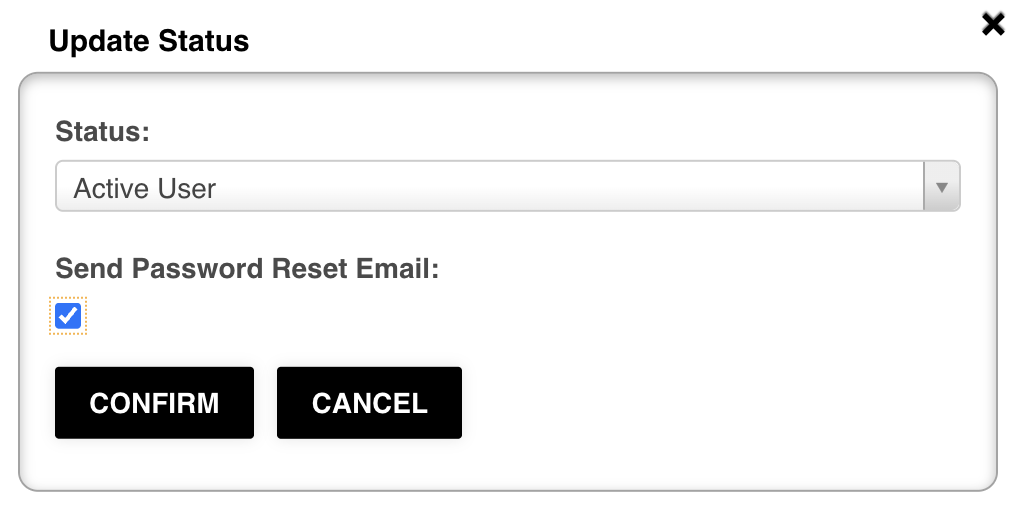
Update Status
Switch selected users between Active and Suspended. When activating suspended users, you can also check Send Password Reset Email before confirming. This will automatically send each user a link to set their password and access the platform. This is particularly useful when onboarding users in bulk: add them as suspended while preparing the environment, then activate them all at once when ready.
Bulk Delete
Select the relevant users, scroll to the bottom of the page, and click the Delete icon. Confirm when prompted to remove all selected users from the platform and from your user limit.
Need Help?
If you have questions about managing users in IntelligenceBank, please contact our support team.
Contact SupportWas this article helpful?
That’s Great!
Thank you for your feedback
Sorry! We couldn't be helpful
Thank you for your feedback
Feedback sent
We appreciate your effort and will try to fix the article