Records* that have been added to a database may need to be edited from time to time.
Edits might be needed in the following common scenarios:
- The user who submitted it needs to update or correct some information
- A record's status needs to be updated
- Other users need to update the record as a part of a larger, end-to-end workflow (ie: content development that needs to be put through review and approval on the record)
There are two main ways to edit a record, based on whether it's a part of a single or staged database.
Table of Contents
Editing a Record within a Single Database
Within this type of database, there are 2 easy options for a user to edit a record.
Edit a Record from the Database Record List Page
The Database Record List Page is the page containing a list of all the records that have been added to that database.
Find the relevant record you want to edit, then select the three vertical dots to the right-hand side and click Edit.
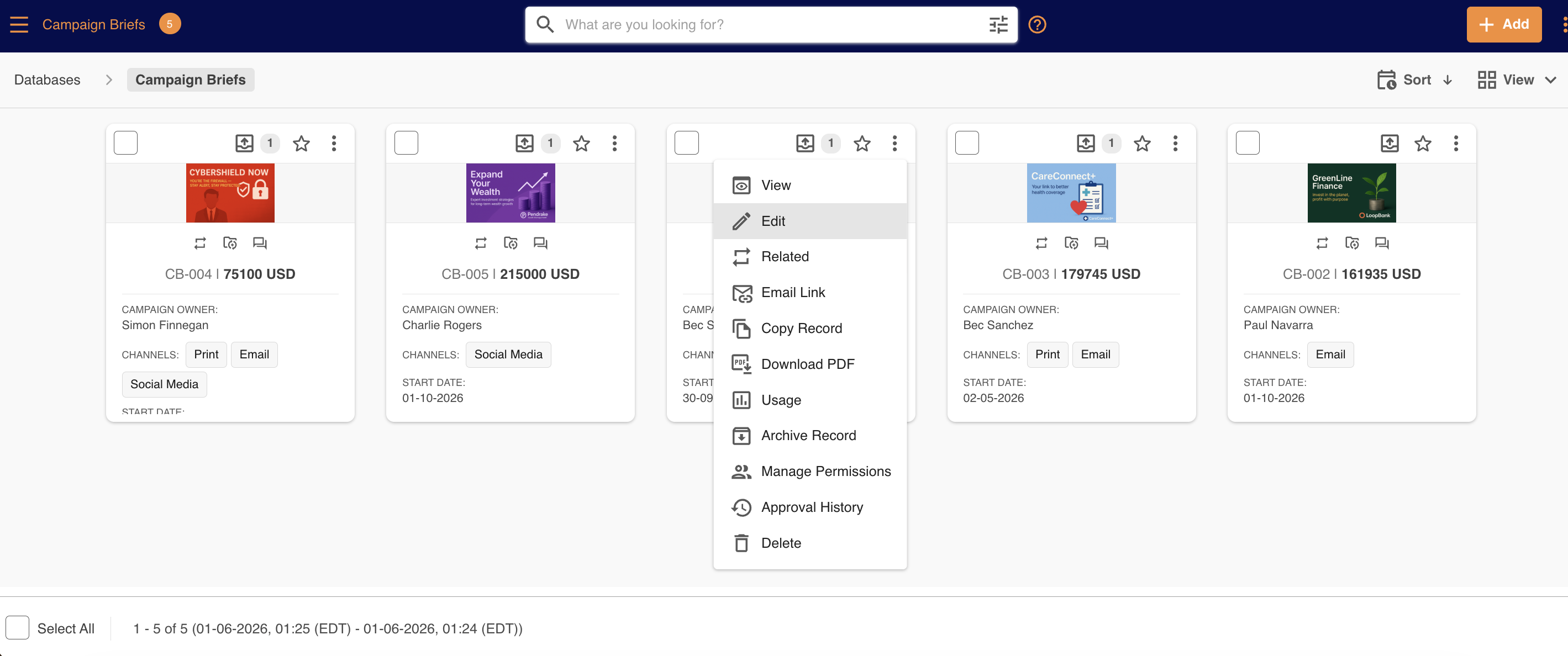
An editable form of the record will appear, allowing you to make whichever edits are necessary.
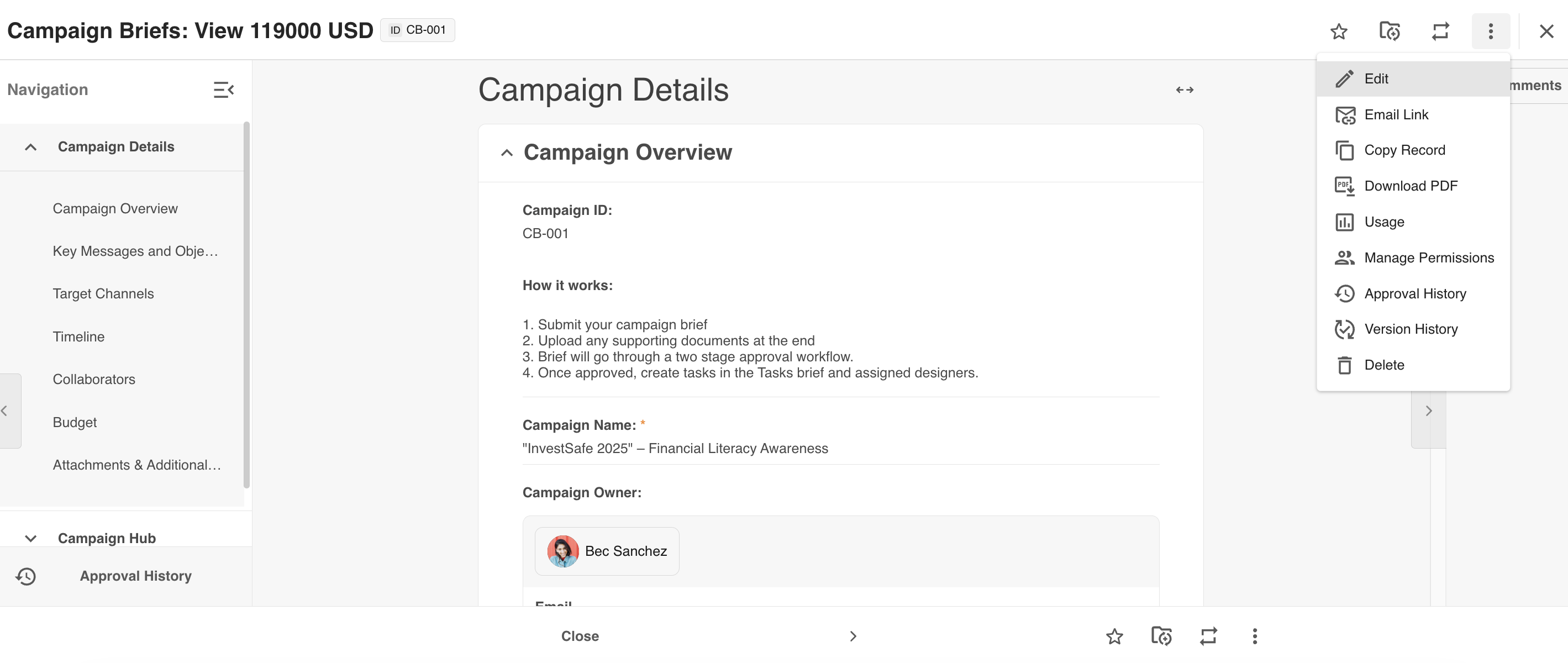
Edit a Record from the Record Overlay
When viewing a record, click the Edit icon that appears at the top of the form. This will open up the record in an editable format.
Editing a Record within a Staged Database (Revert & Continue)
Within this type of database, you can choose to edit a specific stage (permissions pending); accessible again in 2 locations.
Unlike a single database, a staged database requires you to Revert a Stage in order for it to be available for editing.
Revert from the Records List Page
Clicking Revert will prompt a popup to appear, allowing you to choose a stage to re-open. Even if you choose an early stage, it will not affect the data in later stages, which will remain the same (but hidden from view) until they have been specifically updated.
Once you select a stage, the continue page for that stage will open, allowing you to continue work.

Revert from the Record Overlay
If you're viewing a record, you can also revert on that page, via an action called Revert at the top right of your screen.
You can see an example of this below. Once you have selected and reverted the stage, you'll be able to immediately continue working on that stage.

Saving / Submitting your Updates
Once you've updated the record form, click Save, Save & Exit, or Submit at the bottom of the page.
Depending on how it is configured, the record may also need to go through an approval process again.
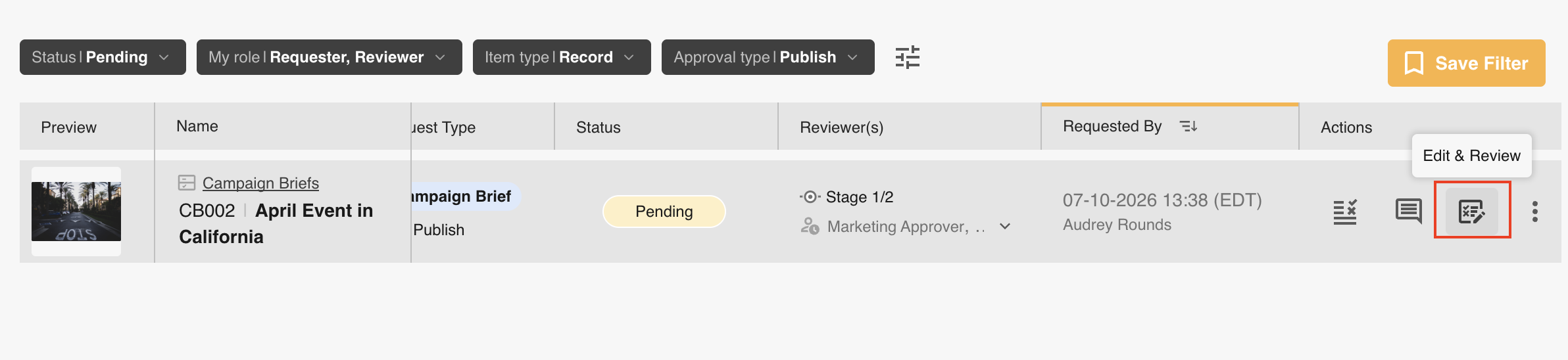
Edit & Review
If there is an approval workflow enabled and the record is sent for approval, it can still be edited from the Approvals List as part of the approval process by reviewers, Approval Admins, and Main Admins.
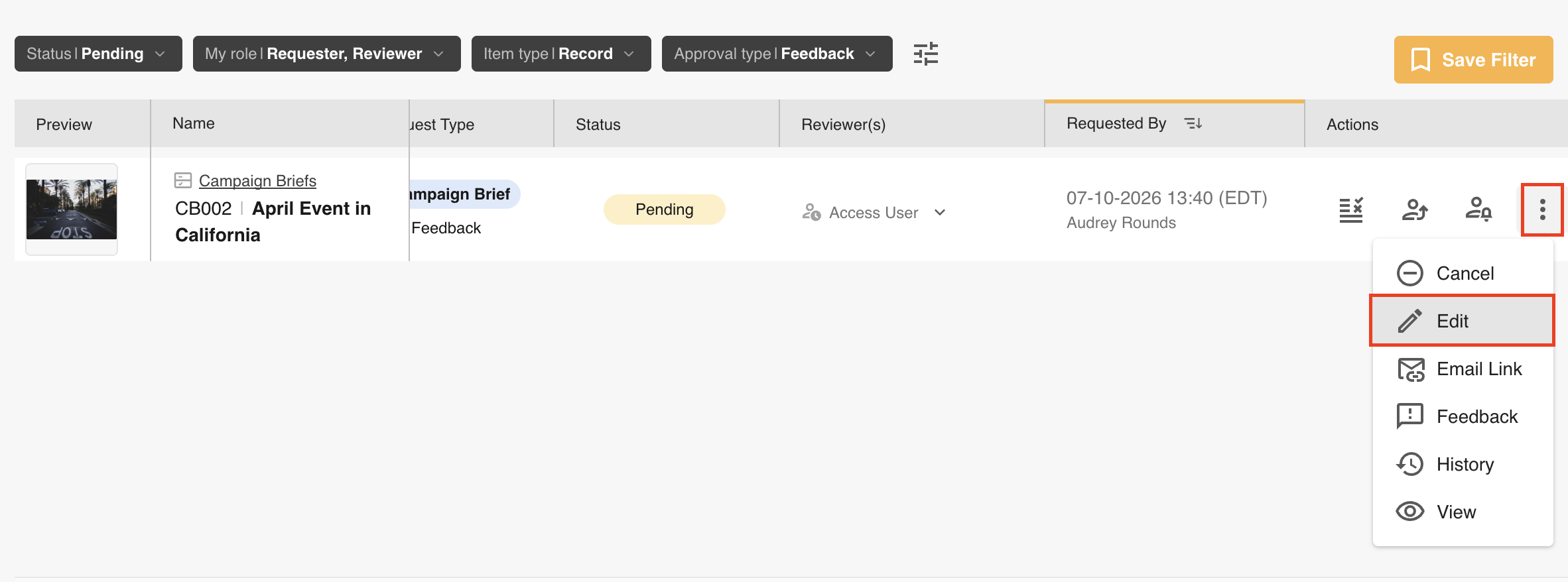
If a record has a feedback approval request against it, Edit can also be selected for that request via the Approvals List.
Block Multiple Users from Editing (at once)
To prevent the risk of multiple users editing records at the same time and overriding each other's changes, when one user is editing a record, IntelligenceBank blocks any other users from being able to do so.
Those users will be alerted when they try to edit a record that is already being edited, and they will instead be redirected to the View Record page for that record.

When viewing the record, they can monitor that the other user is editing at the top right of screen.

The system will automatically check every 1 minute and update this information if the other user has finished their edits. Users can also click on that user's name to immediately check if they're finished.
Inactivity Check
There may be occasions where one user is editing and may leave the page open unintentionally, blocking other users from being able to edit.
For this reason, IntelligenceBank checks for activity on the edit page. If there have been no keystrokes (typing) on the page within 4 hours, a warning will show on screen and if the user views it they can click to continue to edit. If not, then after another 5 minutes their edit session will be terminated, freeing up that record for others to be able to then edit.
Edit Restriction Notes
- Records can still be updated via import even if they are open to be edited by a user on the platform. For this reason it is best to perform updates outside of your normal working hours.
- The above edit restriction alert will not show if the same user opens the edit record page across multiple tabs, browsers, or systems. It will only display to other platform users.
- Finally, note that there are some actions within a multi upload field that can still be performed by other users from the view page while a record is being edited, including sending already saved files for approval, publishing them to a folder, or updating their revisions via the General Markup Comments feature.
Was this article helpful?
That’s Great!
Thank you for your feedback
Sorry! We couldn't be helpful
Thank you for your feedback
Feedback sent
We appreciate your effort and will try to fix the article