Users are able to add Drag & Drop pages in a few locations and can also select from Templates that make it even easier for a user to customise and manage their content.
Table of Contents
Add a New Page
Add Page via Custom Pages List
Select "Add Page" as highlighted below on the right and select Drag & Drop Page in the pop-up.

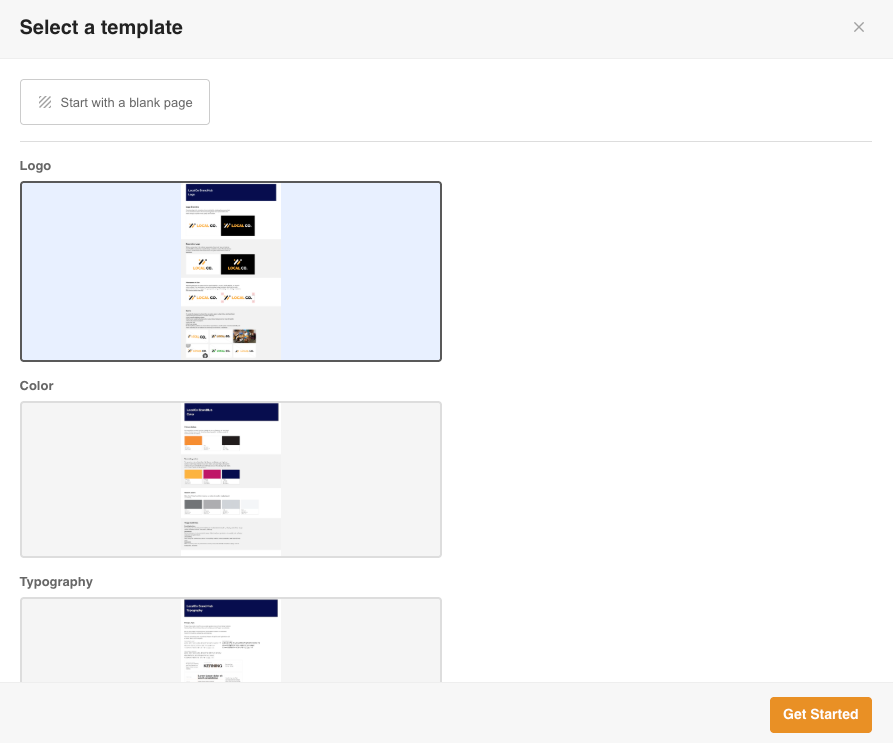
Users will then need to choose between creating a page pre-populated with an existing Template or creating a new Blank page.
Add Page via Drag & Drop Page Builder
There are multiple ways to add a new Page from within the Page Builder.
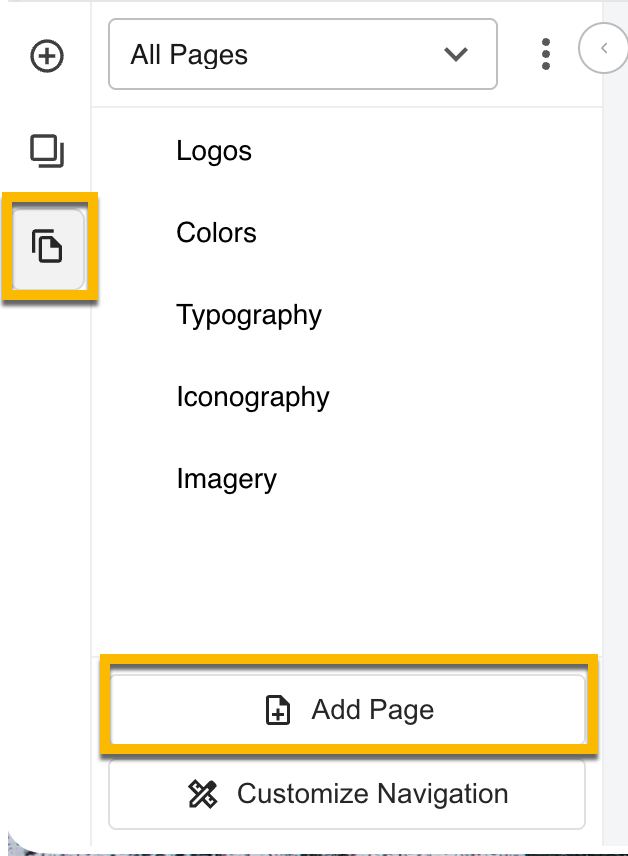
- In the left panel of the builder, select the Pages tab (highlighted on the left below) and click Add Page at the bottom of the Panel.
- Hover over a page and select the More icon (3 dots), then select Add Page or Add Sub-Page
Select a Template
Templates allow users to select a pre-configured page that has been created according to best practice. Once added they can update the content to suit their own Brand purposes or edit the items on the page and use the template as a base to build upon.
Templates can be added whenever a User is adding a new Drag & Drop Page. When a new Page is added, users will be presented with a popup containing a list of pre-configured templates to choose from. Templates are not currently supported when adding Sub-Pages.
The Templates are categorised by type: Colors, Logos, Icons, Imagery and Typography. Users can also choose to create a Blank Page if they wish to build their own.
Once a Template is selected and the user clicks Get Started, the Template will immediately be loaded into the page and can be updated. There is no limit to the amount of templates that can be selected.
You can view a guide below on how to select and add a Template.
Add a Sub-Page via Drag & Drop Page Builder
Pages are standalone pages and can appear on their own. Sub-Pages are those that sit under another Page, like a folder structure. You can use Sub-Pages as a way to create a Page Structure or as a way to organise content.
You can add Sub-Pages by navigating to your Page Navigation Panel, selecting the More icon of a Page to access a dropdown menu and click "Add sub-page".
Page Limits
If you're presented with a message that a page limit has been reached, please reach out to your Administrator or Customer Success Manager.
You can view the full list of related pages here or view suggested articles below.

Was this article helpful?
That’s Great!
Thank you for your feedback
Sorry! We couldn't be helpful
Thank you for your feedback
Feedback sent
We appreciate your effort and will try to fix the article