Drag & Drop Pages allows users to create groups of Pages that have their own navigation built in, all of which can be managed from within the Page Builder. Through the Navigation panel, you can add Pages, Sub-Pages and Categories - allowing you to Group pages together. Pages can be re-ordered, grouped, copied and deleted from the Navigation panel.
Table of Contents
Page Navigation Panel
Pages tab
The Pages tab in the left panel of the Page Builder lists your Pages and Sub-Pages. The navigation is also shown to people viewing your published pages, but the actions below can only be completed in the Page Builder, which keeps page management limited.
All Pages are subject to permissions set in Admin > Groups, and the Pages you can see here depend on this.
The Pages list can be switched between All Pages and any Categories you've added (see Drag & Drop Page Categories).
Re-ordering
You can re-order any page using Drag and Drop. You can also drag a Sub-Page out of the structure to turn it into a Page, or drag a Page under another to make it a Sub-Page. When re-ordering, take note of the line and circle that indicates where you're dragging the item to.
Navigation supports one level of sub-menu under each top-level item. In horizontal navigation, when a Sub-Page is selected both the Sub-Page and its parent are highlighted.
Delete Page
To delete a page, use the Custom Page list or the Pages tab in the builder. This works for both Pages and Sub-Pages.
If you're deleting a Page that has sub-pages, these are also removed. You'll be given a warning before completing this action.
Copy Page
You can create a duplicate Page or Sub-Page using the Copy (duplicate) action. Copied pages must be saved before they can be viewed by other users.
Viewing Pages as an End User
Once your Pages are completed and permissions assigned, the navigation appears on the page: on the left side for vertical navigation, or across the top for horizontal.
Viewers can switch between All Pages and Categories using the dropdown at the top of the navigation (assuming it's not hidden or they're on a horizontal navigation layout). All Pages are subject to permissions set in Admin > Groups.
Navigation Layout and Styling
You can choose how the navigation menu appears to people viewing your pages via the Customize Navigation settings area, accessible via the Pages tab.
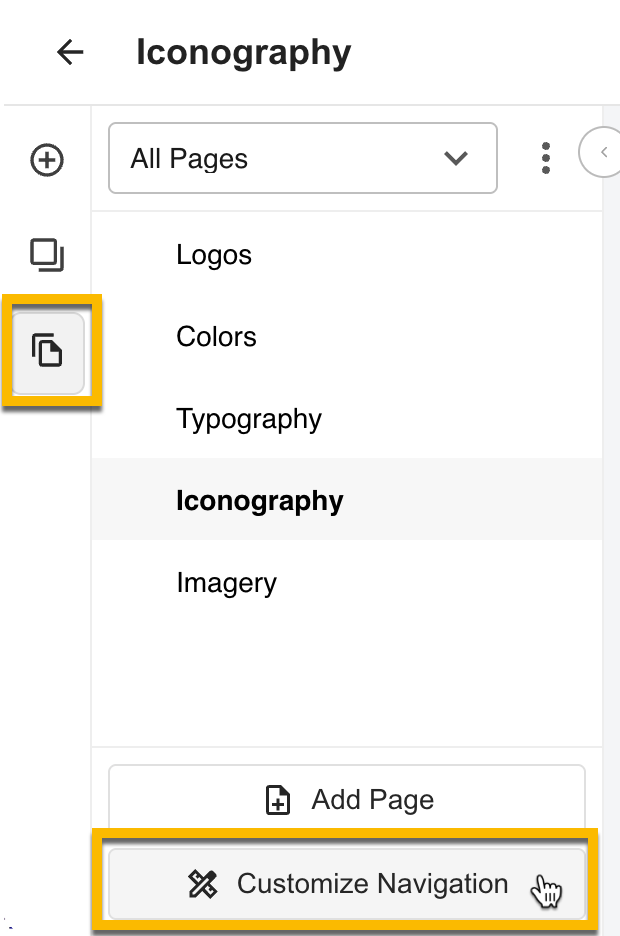
Opening this option allows you to preview the various Navigation Styles you could add. It might be useful to have multiple options if you have multiple brands.
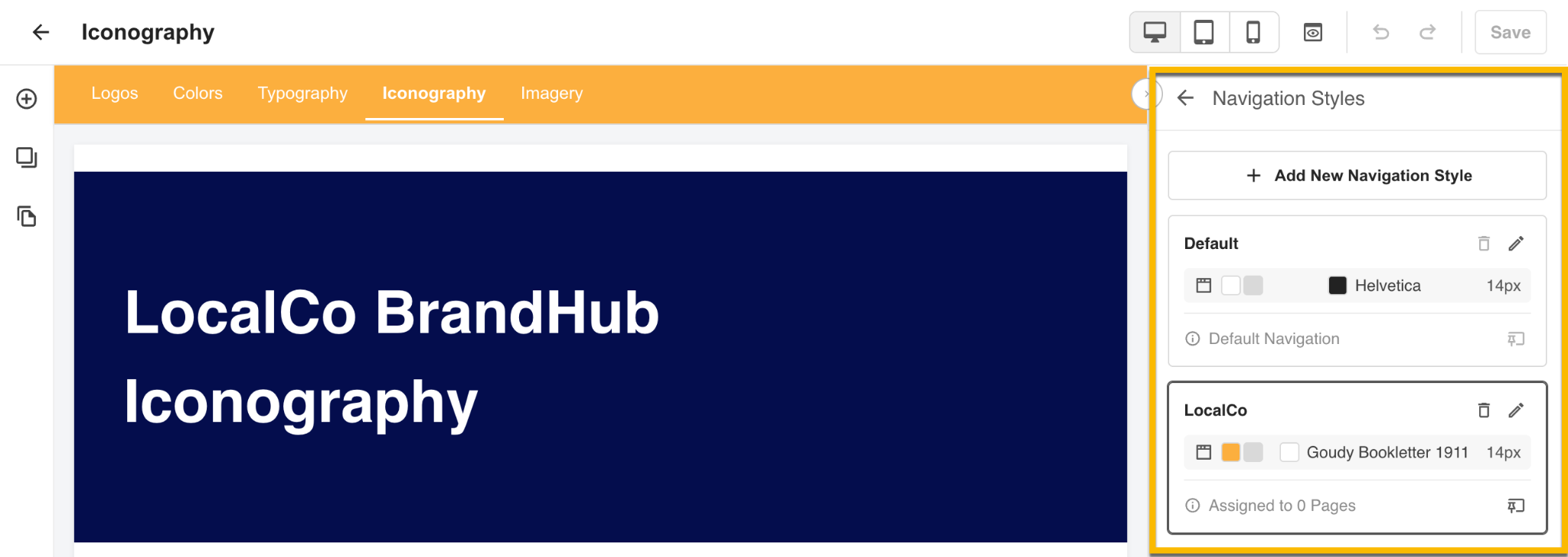
Navigation Styles
A Navigation Style is a set of navigation settings that you can apply to different Pages.
When adding or updating a Navigation Style you can apply General Settings and Layout options that customise the look and feel of the navigation panel.
To note:
- You can have several styles, update them, and set one as the default.
- Pages without an assigned style use the default style.
- Setting a style as default clears the pages currently assigned to it and makes it the fallback for every page without a style. The previous default becomes a normal (non-Default) style.
Navigation Style Settings
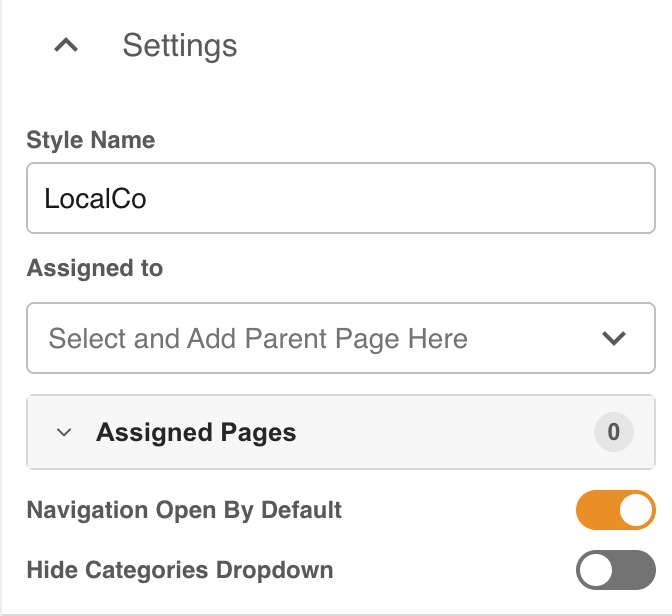
Update the core settings that dictate when and where this style of Navigation appears. Customise:
- Navigation Style name. Note that this is only visible to users accessing the Page Builder.
- Choose which parent Pages the style applies to.
- Note that Sub-Pages follow their parent's style.
- If Vertical is selected (neither option below is applicable for Horizontal)
- Select if the Panel will be open by Default or not
- Hide Category Dropdown if you don't need users to access multiple categories
- Note that Category grouping will always be enforced for Horizontal layouts
- Save Navigation Style to apply your changes to end users
Navigation Style Layout
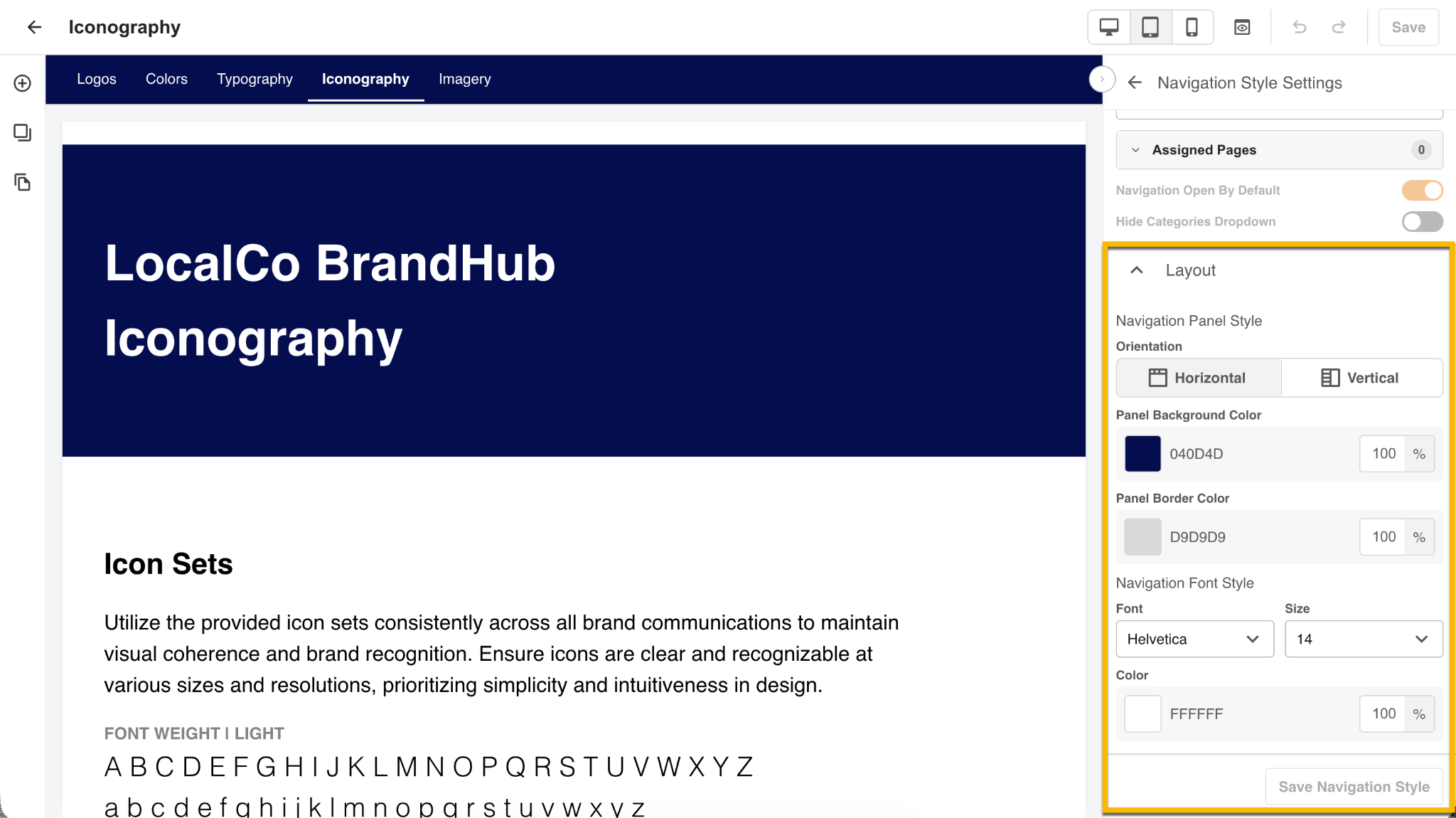
Update the look and feel of the Navigation panel. Customise:
- The Orientation of the navigation, determining if it will be Vertical or Horizontal.
- Add a Panel background, border and text colors - ensuring even the navigation is on brand.
- Customise the Navigation font, including size and color
- Save Navigation Style to apply your changes to end users
You can view the full list of related pages here or view suggested articles below.
Was this article helpful?
That’s Great!
Thank you for your feedback
Sorry! We couldn't be helpful
Thank you for your feedback
Feedback sent
We appreciate your effort and will try to fix the article