Custom registration rules allow Main Admins to build rules based on conditional logic that automatically route self-registering users into the right groups or divisions, or potentially controls whether they require approval (if enabled,) based on attributes such as their email domain or selected purpose.
Table of Contents
What Are Custom Registration Rules?
Custom registration rules use if-then logic to automate what happens when a user self-registers. Instead of every self-registrant following the same default path, rules let you define different outcomes depending on who is registering.
For example, you might want internal employees (identified by their company email domain) to bypass approval and be added directly to an internal user group, while external partners are held for approval. Rules make this kind of conditional routing automatic.
Each rule is made up of:
| Component | Description |
|---|---|
| IF (Condition) | The attribute you are evaluating, such as the user's email address or the purpose they selected on the registration form. |
| THEN (Action) | What happens when the condition is met, such as assigning the user to a group, assigning them to a division, skipping or declining approval, or controlling IntelligenceBank login access. |
Navigating to Custom Registration Rules
Custom registration rules live on a separate page from the main registration settings. Follow these steps to get there:
| 1Go to Admin > Registration | Navigate to the Admin area and select Registration. You must be a Main Admin to access this section. |
| 2Locate Custom Registration Rules | Find the Custom Registration Rules field on the page and select Configure. |
| 3Save before leaving | A warning will appear advising you to save all changes before continuing, as selecting Configure will navigate you away from the registration settings page. If you have unsaved changes, select Cancel, save the form, then select Configure again.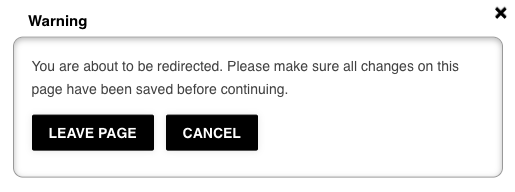 |
| 4Leave the page | Once you've saved your settings (or if there's nothing to save), select Leave Page to proceed to the Custom Registration Rules builder. |
Creating a New Rule
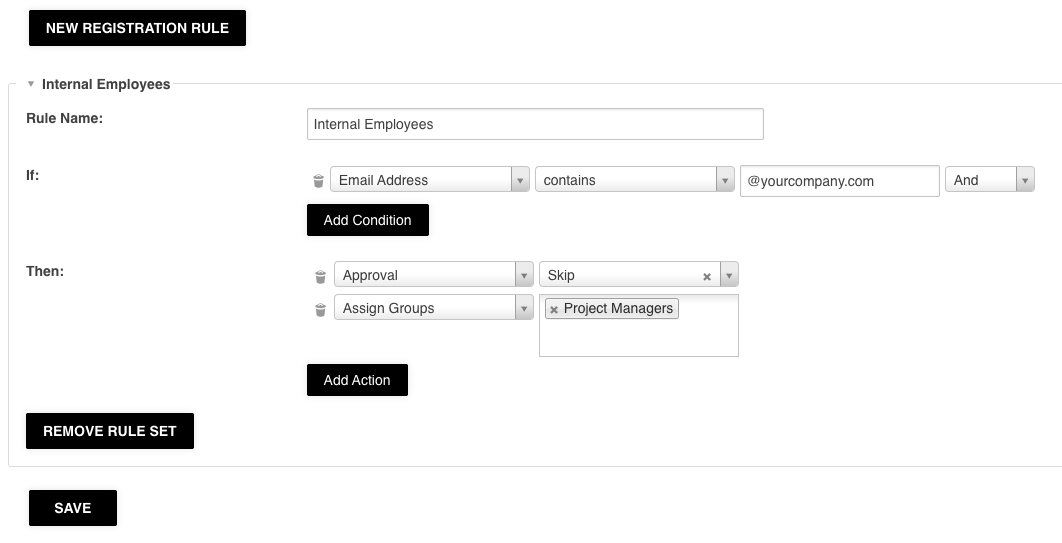
On the Custom Registration Rules page, select New Registration Rule. A blank rule form will appear with fields for the rule name, conditions (IF), and actions (THEN).
Give the rule a descriptive name that reflects its purpose. For example, Internal Users or Agency Partners Require Approval. A clear name makes it easy to identify and manage rules if you return to this area later to make changes.
Building Conditions (IF)
Select Add Condition within the IF field to define when this rule should apply. You can build conditions based on the following attributes:
| Condition Type | How It Works |
|---|---|
| Email Address | Match based on the user's email address or domain. For example, if the email contains @yourcompany.com, the condition is satisfied. This is commonly used to identify internal employees versus external users. |
| Purpose | Match based on the purpose the user selects when filling out the self-registration form. Available when the Purpose field is enabled in your registration settings and configured with a dropdown or multi-select. For example, if the purpose selected is Marketing, the rule can automatically assign them to a particular user group. |
You can also add multiple conditions to a single rule. For example: if the purpose is Marketing and the email address contains @yourcompany.com, then assign them to the Marketing group and skip approval. Combining conditions allows for more precise, complex routing logic.
Configuring Actions (THEN)
Select Add Action to define what happens when a user satisfies the conditions. You can add multiple actions to a single rule. The available actions are:
| Action | What It Does |
|---|---|
| Assign Groups | Automatically adds the user to one or more user groups. A dropdown of your existing groups is available to select from. |
| Assign Divisions | Automatically assigns the user to a specific division within the platform. |
| Approval: Skip | Users who match this condition bypass the approval workflow entirely and are registered immediately without requiring an approver to review them. Useful for trusted users such as internal employees. |
| Approval: Decline | Users who match this condition are automatically declined. This is useful if you want to restrict self-registration to only those with specific email addresses or purposes, and reject all others outright. |
| IntelligenceBank Login | Enables or disables IntelligenceBank login for users who match the condition. Primarily relevant for platforms using single sign-on, see Single Sign-On Consideration below. |
Managing Rules
Saving a Rule
Once you have configured the conditions and actions for a rule, select Save to save it within the platform. The rule will take effect for any new self-registration attempts going forward.
Adding More Rules
To build additional rules, you can either:
- Select New Registration Rule at the top of the page. This adds a new blank rule form directly below any existing rules, or
- Navigate back to Admin > Registration, select Configure on the Custom Registration Rules field, and select Leave Page to return to the rules builder.
There is no technical limit to the number of rules you can create.
Removing a Rule
To remove a rule that is no longer needed, select the Remove Rule Set button on the rule you wish to delete. The removal takes effect once you select Save on the page.
Single Sign-On Consideration
If your platform uses single sign-on (SSO), you can include an IntelligenceBank Login action in a custom rule to automatically enable or disable IntelligenceBank's native login for users matching a condition. For example, you could set a rule so that users with your organisation's email domain have IntelligenceBank login disabled, since they will authenticate via SSO instead.
If you are unsure how custom registration rules interact with your specific SSO setup, reach out to your dedicated Customer Success Manager for guidance.
Was this article helpful?
That’s Great!
Thank you for your feedback
Sorry! We couldn't be helpful
Thank you for your feedback
Feedback sent
We appreciate your effort and will try to fix the article